
Transactions can be entered in two ways:
- Manually under Accounting -> Transactions
- Via bank import
Manual transaction entry
Accounting -> Transactions -> +New transaction
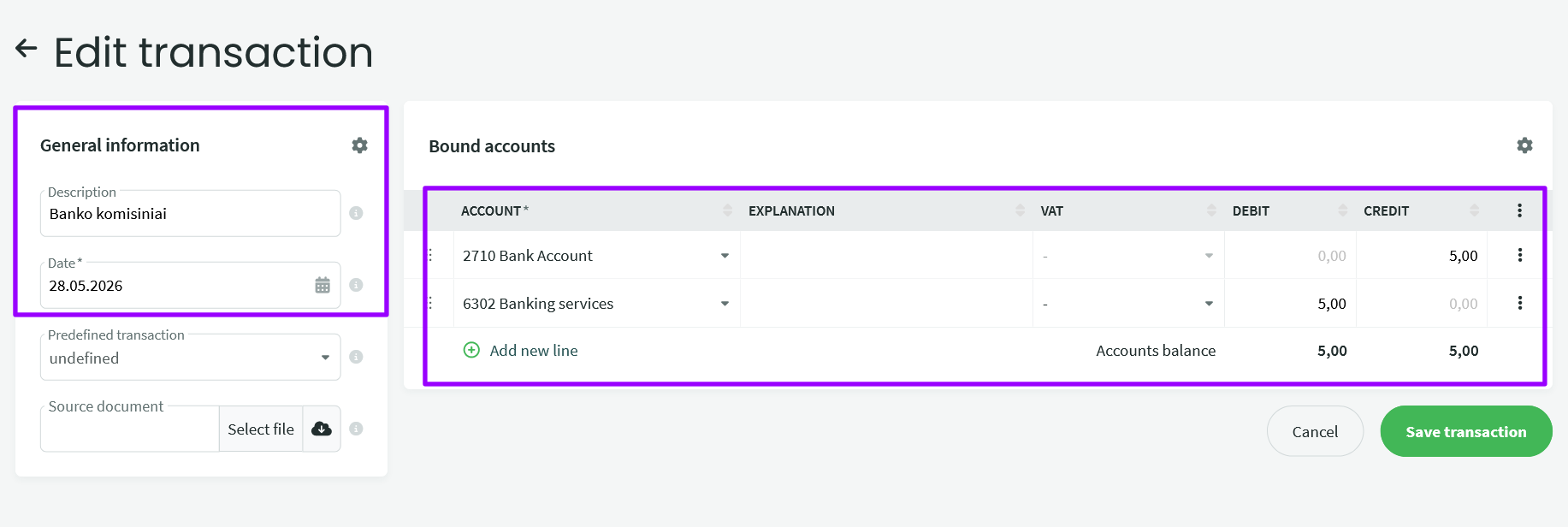
On the left side, enter general information about the transaction and the date. On the right side, enter the Debit and Credit amounts for the transaction, then click “Save Transaction.”
Importing Bank Statements
Upload the bank statement XML file as usual via “Incoming Payments” or “Outgoing Payments,” or via the menu: “Payroll” – “Payments” – “Import.” It doesn’t matter how you import the statements—once they’re imported, you’ll see all the transactions and will be able to record them.
If bank transactions have been imported but not yet processed, you can change the transaction type. The available options depend on whether the transaction is an income or an expense transaction.
The system usually recognizes bank entries and can immediately suggest an expense account or offset them against a purchase or sales account

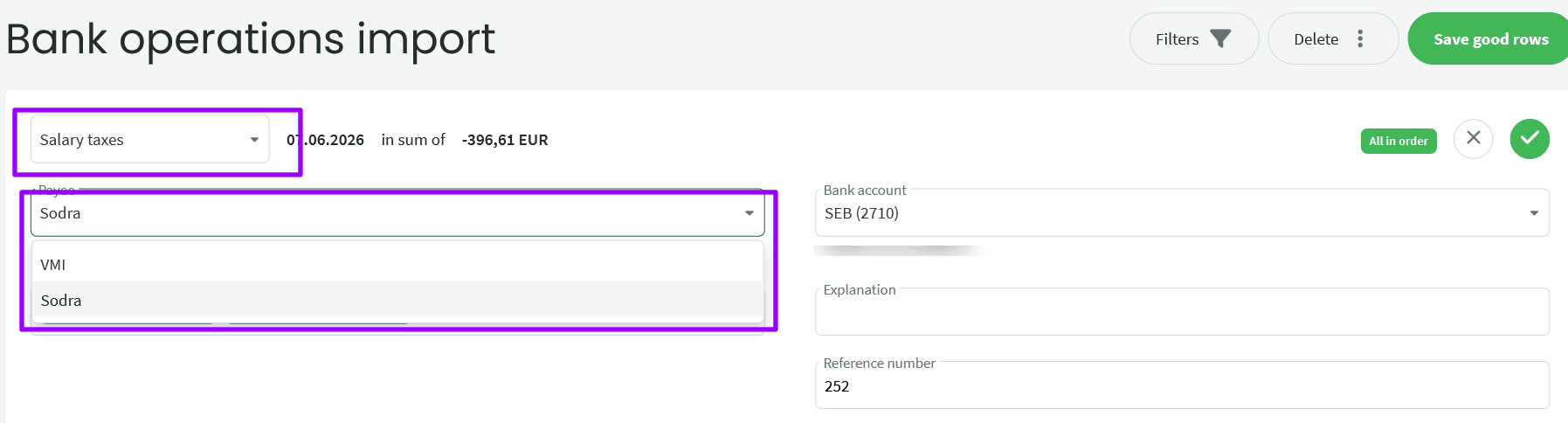
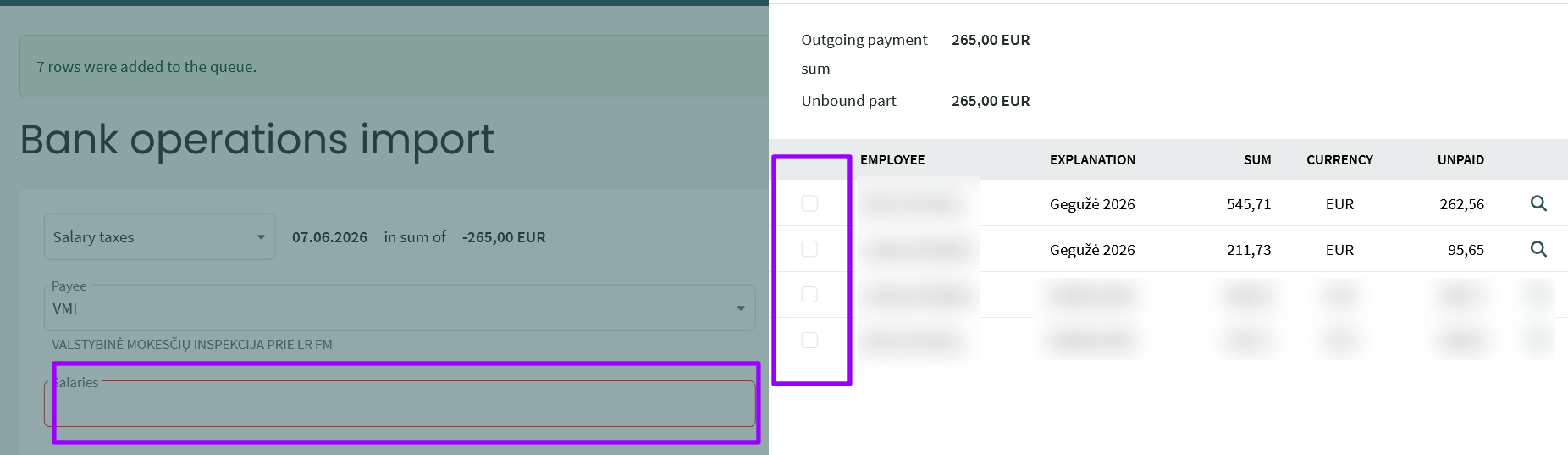
You can change the transaction type by clicking the arrow. Available types: Receivalble/payable (used for purchase and sales payments), financial transaction (used for taxes, commissions, etc.), salary, salary taxes.
● If you are importing, for example, bank fees or taxes (other than salary taxes), select “Financial Transaction” for the imported entry, enter a description, specify the debit side in the Accounts column (e.g., VAT Balance Account or Bank Fees), and save (the green checkmark at the top right of the transaction). ● When paying salary or taxes, select the type “Salary Payment” or “Salary taxes”
Go to the Accounting menu -> Transactions. To edit a transaction that has already been entered or imported, or to create a copy of it, click the desired entry in the transaction list (you can use the filter function).
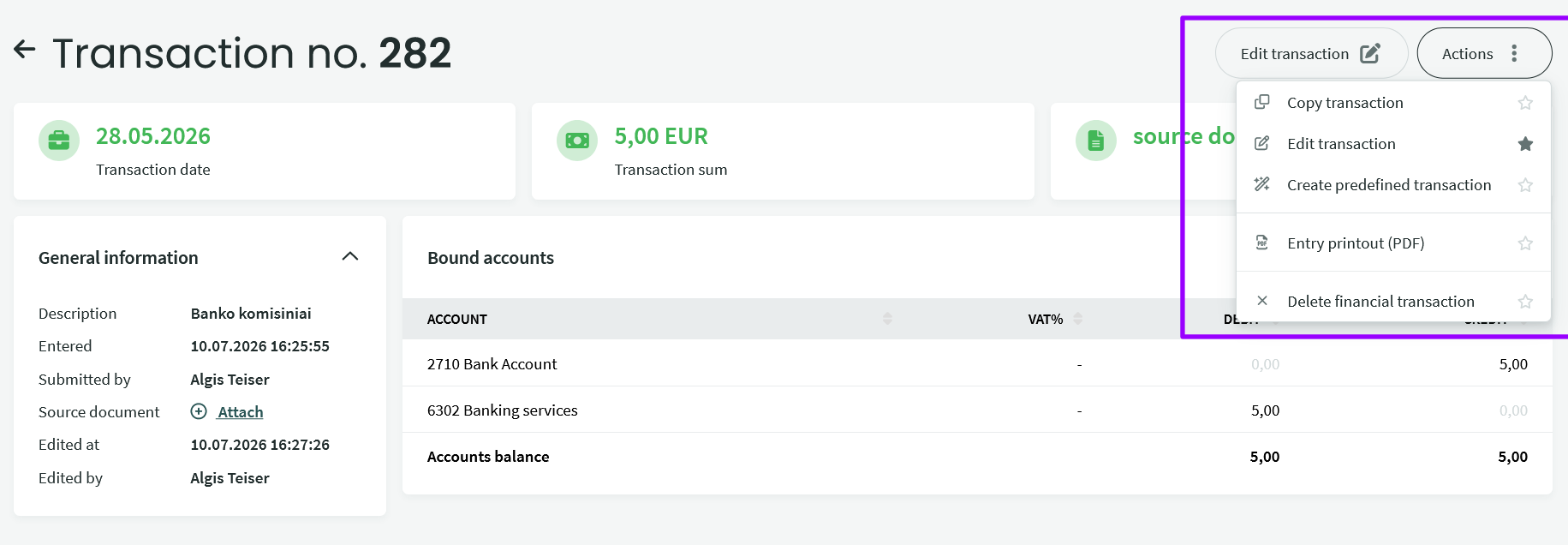
When you hover your mouse pointer over the “Actions” button, you’ll see the available options. You can also mark the two most frequently used functions as favorites.
options. You can also mark the two most frequently used functions as favorites.
When an operation is edited, the operation’s general information (on the left) displays the date of the change and the person who made it. If the operation has been modified multiple times, only the information about the person who made the most recent change is displayed here. For more information about the user activity history, see the menu (Settings -> Users -> User Activity Log).
If you have any additional questions, write us support@simplbooks.lt

Leave A Comment?