
HOW TO FIND? – From the main menu “Accounting -> VAT statement”
The content of the value added tax report is almost identical to the VMI EDS VAT return form. With a proper configuration of SimplBooks, the value added tax return data can be transferred to both VMI EDS and I-SAF systems.
● Export of reports
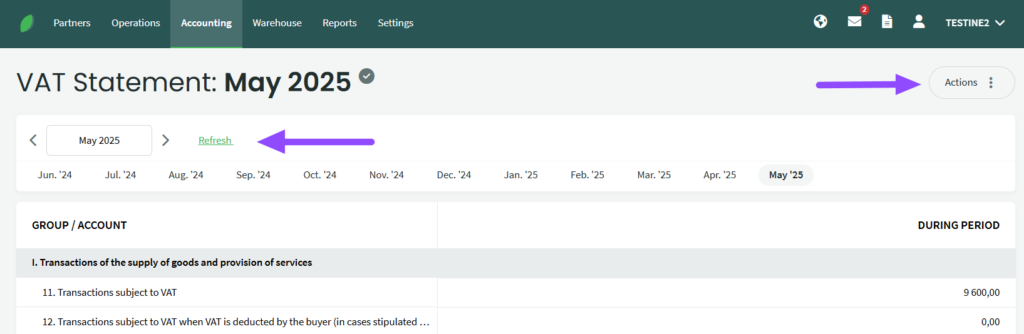
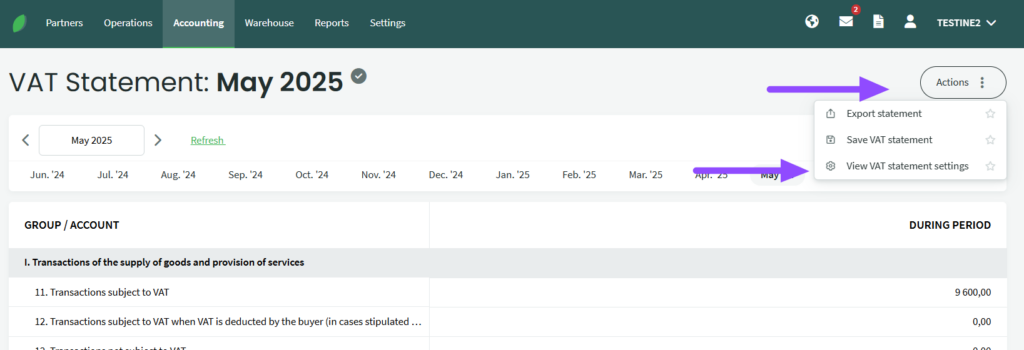
To export report data for the selected period, click the “Actions” button in the header → “Export report” and choose either the I-SAF data file or the VAT (FR0600) report file.
You can then upload the exported report to the State Tax Inspectorate (VMI) system. Please make sure that you are exporting the report for the correct month. You can change the date by selecting the correct month of the report.
If you want certain invoices not to be included in the report, you can uncheck the desired invoices in the I-SAF section before exporting the I-SAF report. Unchecked invoices will not be included in the exported register. Please note that invoices are included in the I-SAF register according to the selected VAT code when creating a purchase or sales invoice. If you do not want invoices to be included in I-SAF, select an appropriate code (for example, “Not declared in I-SAF” or similar).

● VAT period closing entry (Closing Entry). After you export and verify the VAT and ISAF reports, don’t forget to save the VAT period closing entry. The entry is generated automatically; you just need to review and save it. You’ll find it below the ISAF entries under “Period Closing Entry” (VAT receivable and payable accounts are closed using an interim VAT balance account. When processing bank payments, amounts can be offset through this account)

Please note that the VAT balance (VAT payable or receivable) is posted to the D or K side of the VAT balance account, as appropriate. You can manually adjust the closing entries. If the transactions are recorded correctly, click “Save transaction.” Later, as needed, you can transfer these entries to VAT payable or receivable, or perform other operations in the general journal (Accounting-Transactions).
● Report settingsTo change the settings of the VAT report, use the “Actions” button in the header of the report and select “View VAT report settings”. Clicking on it will open the report settings view.
Value added tax reports are usually configured in the same way as other accounting reports. If you want to change the accounting accounts for which data is included in the report, please edit/enter the relevant accounts in the column “Account rules”. If you want to adjust the VAT types, select the desired VAT code in the column “VAT type”. If you want to add or delete rows, click “+” to add or “x” to delete on the right hand side. Once you have made your changes, click “Save settings” at the bottom of the report
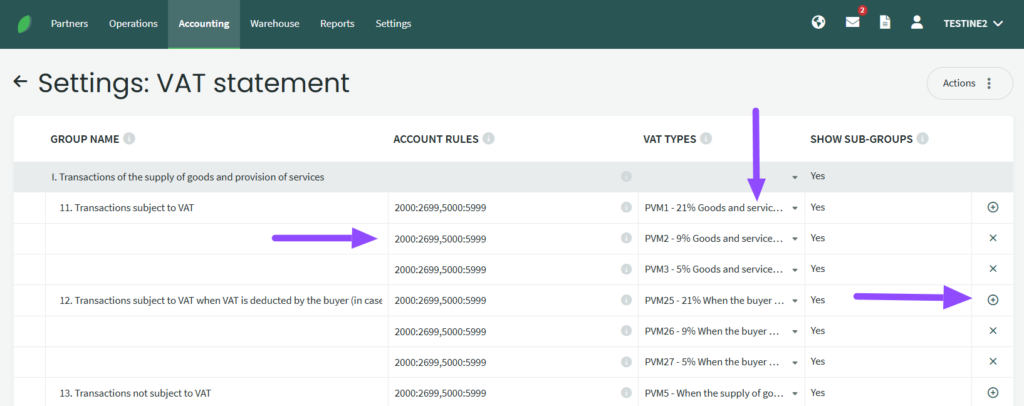
The value added tax report is pre-configured with an initial chart of accounts for standard sales and purchase transactions.
If you have any questions, please contact us at support@simplbooks.lt.

Leave A Comment?