
Inventory is an important tool to ensure that a company’s inventory is accurately reflected. Over time, data about items in stock can become inaccurate, for example, due to errors entering warehouse stock, delivery, or sales. Inventory allows you to identify such discrepancies and correct the data so that warehouse stocks reflect reality.
Inventory stocks should be kept at least once a year, before the end of the year.
Inventory can be added manually or imported from a file.
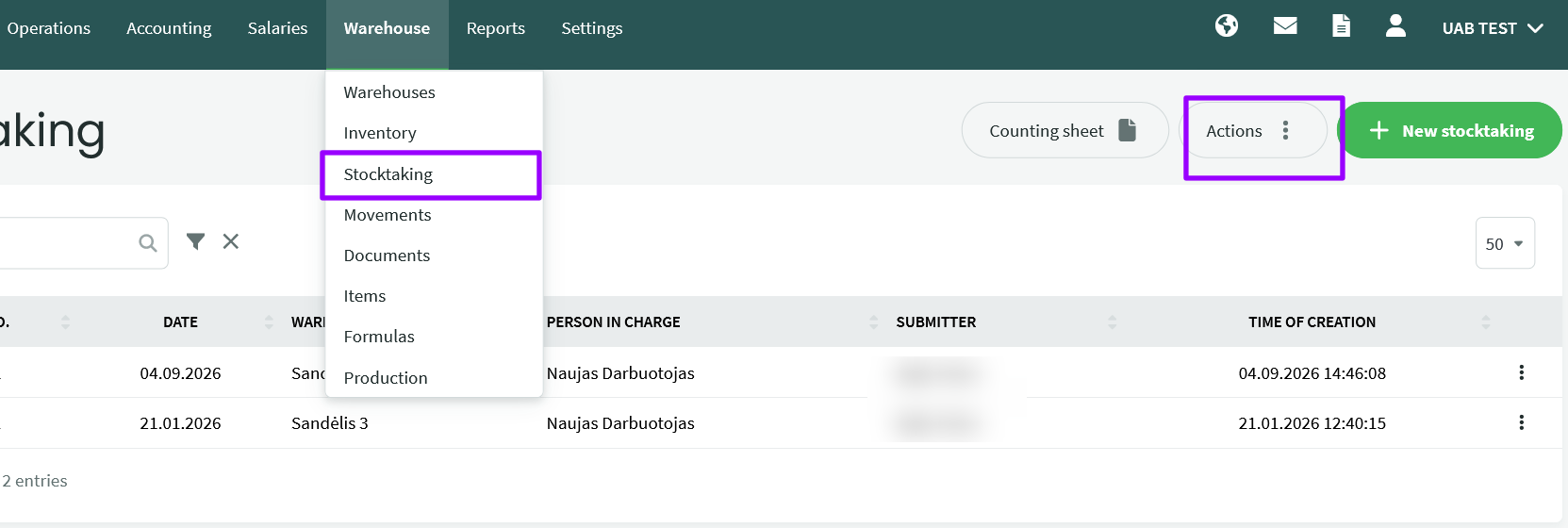
Warehouse -> Select Stocktaking from the Operations “Import” button
Set relationships in the inventory review. Required data:
- inventory date
- inventoried warehouse
- product code
- counted quantity
If desired, the item’s cost price can also be specified. However, this information is not mandatory.
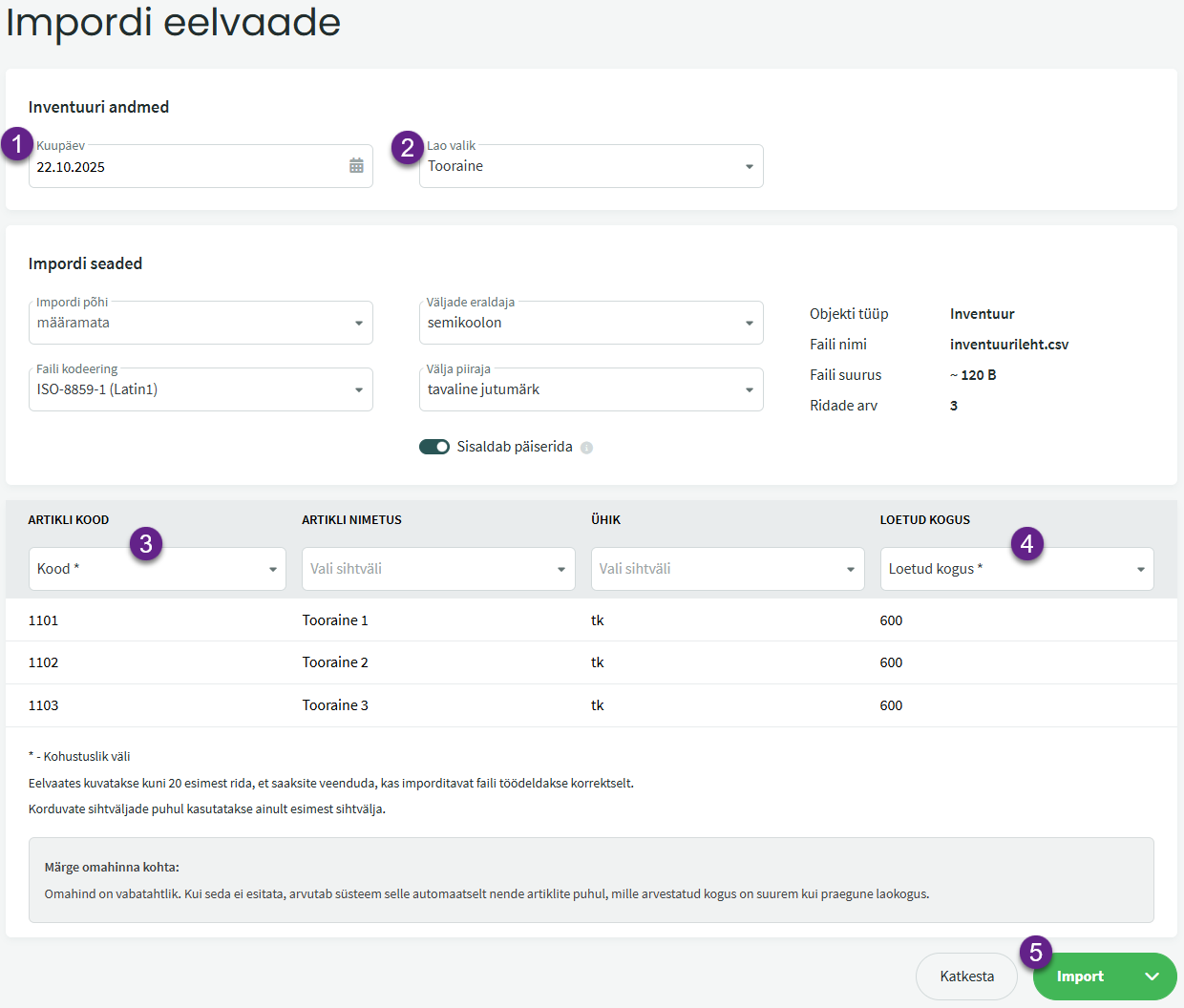
Once the necessary connections are established, click “Import” (5).
If there were rows in the import file where information is missing in the “Counted quantity” column, the row is deleted and does not appear in the inventory.
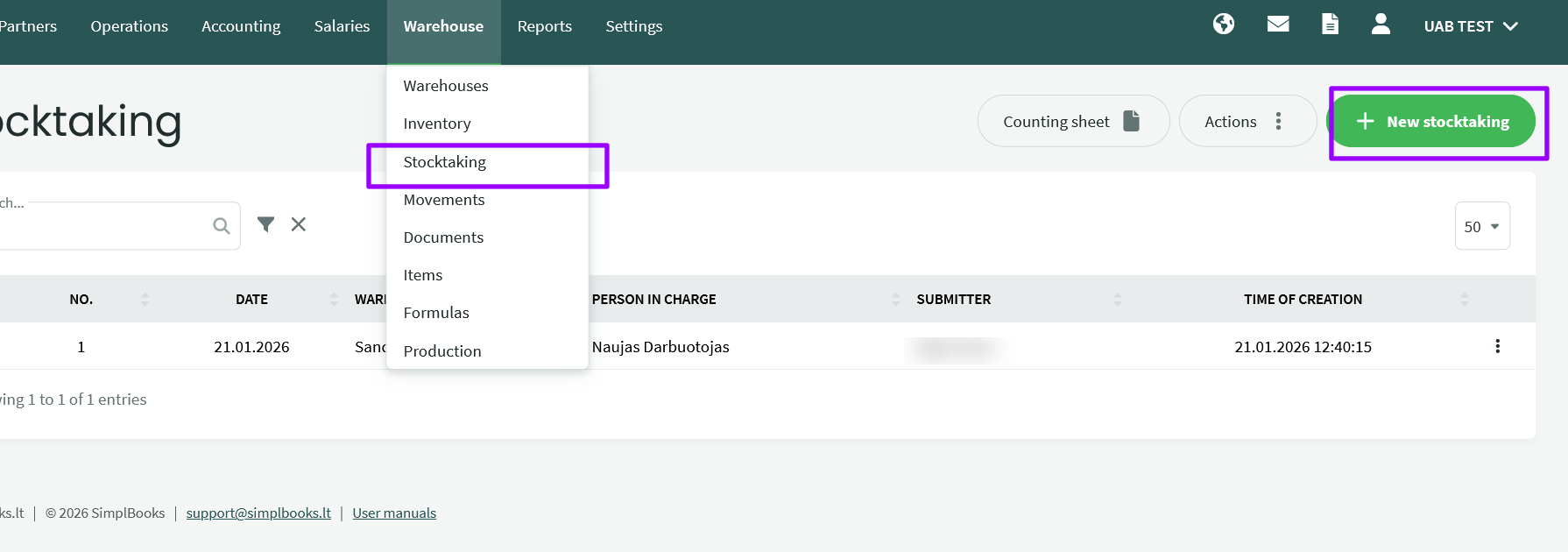
Warehouse -> Stocktaking -> New inventory
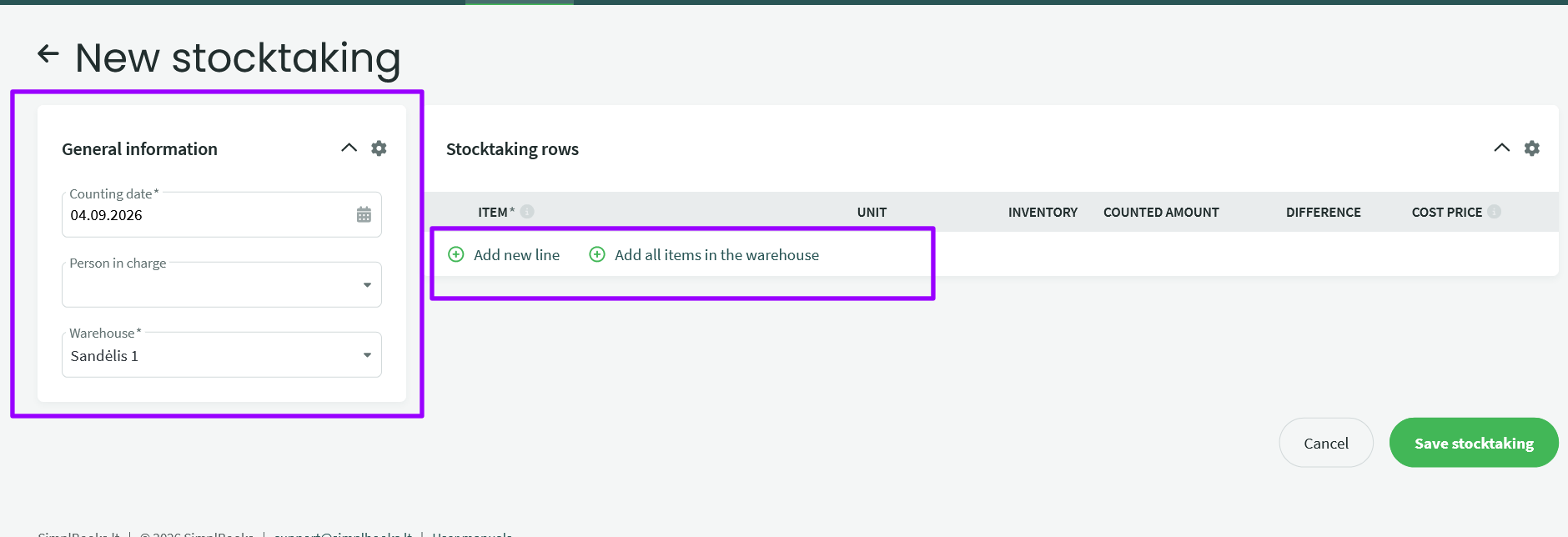
- Calculation date – inventory completion date
- Responsible person – from the dropdown menu, you can select the employee responsible for conducting the inventory
- Warehouse – where the items in the warehouse are inventoried. By selecting a warehouse and clicking “Add all items in stock,” the items in that warehouse are loaded into inventory lines (up to 1000 lines).
Only those items that previously had warehouse balance/movements are shown in the inventory. Inventory does not allow accepting items whose warehouse balance was not previously registered.
● Inventory lines panelWhen entering inventory, the actual item quantity must be entered in the “Counted quantity” column.
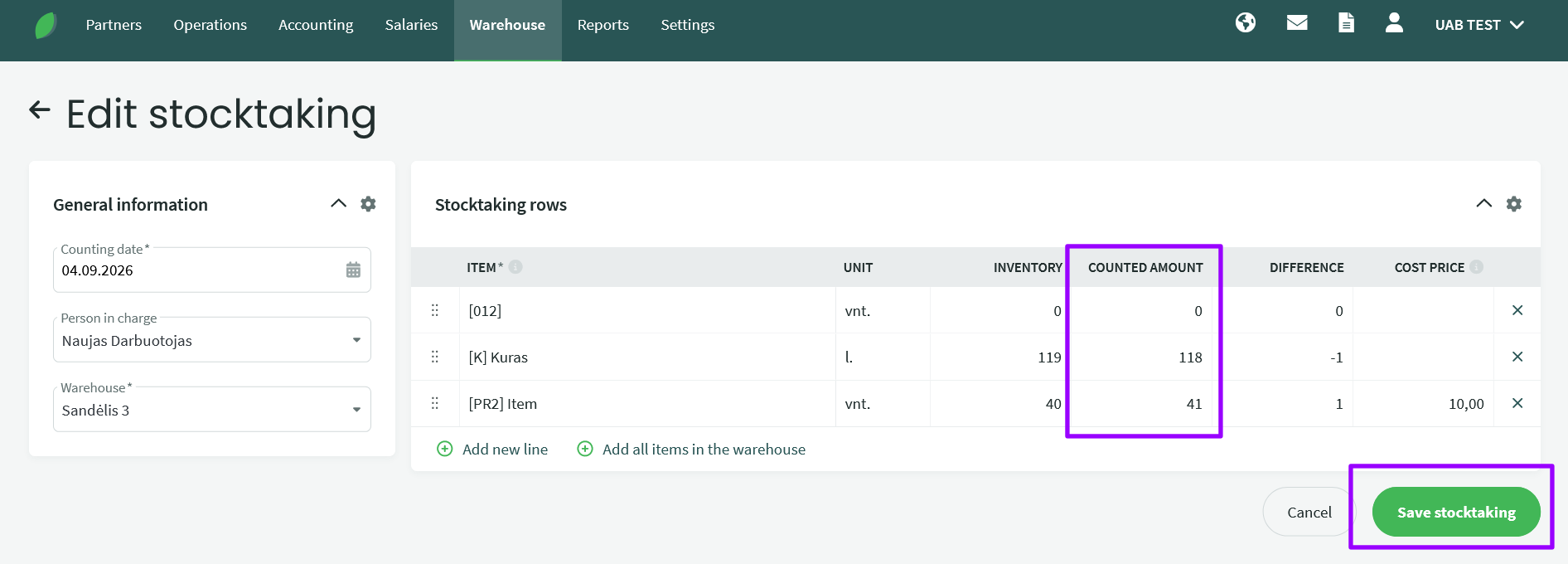
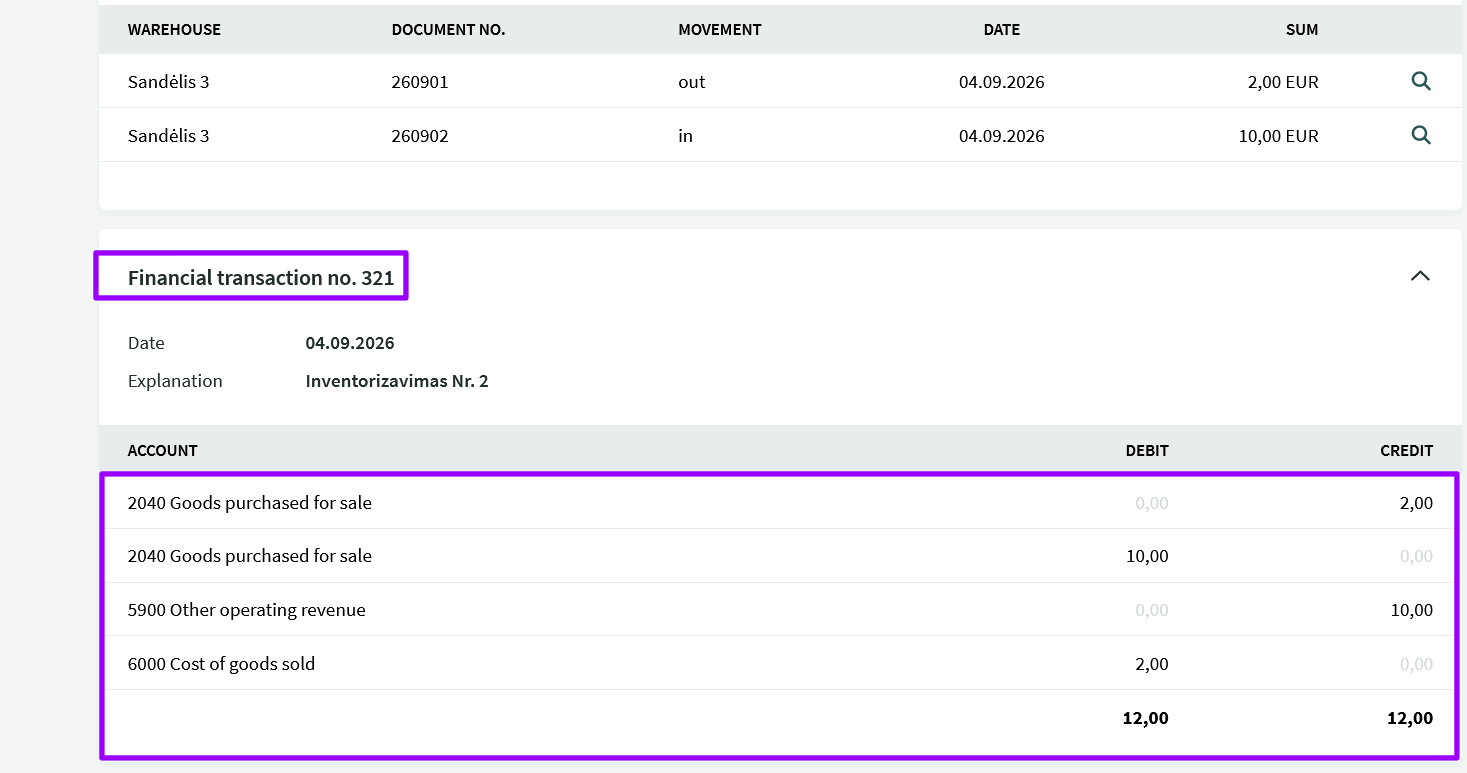
There are fewer goods than the warehouse balance – the difference quantity is shown as a minus sign. The cost is added when maintaining the inventory. If the items are from multiple batches, the items are written off using the FIFO method, and the write-off cost is determined accordingly
- There are more goods than the warehouse balance, and the warehouse balance differs from zero – the cost is shown based on the last purchase price.
- The item warehouse balance is zero, but the calculated quantity is higher – you need to add the cost yourself based on the last purchase price.
If you have additional questions, please write to us support@simplbooks.lt