
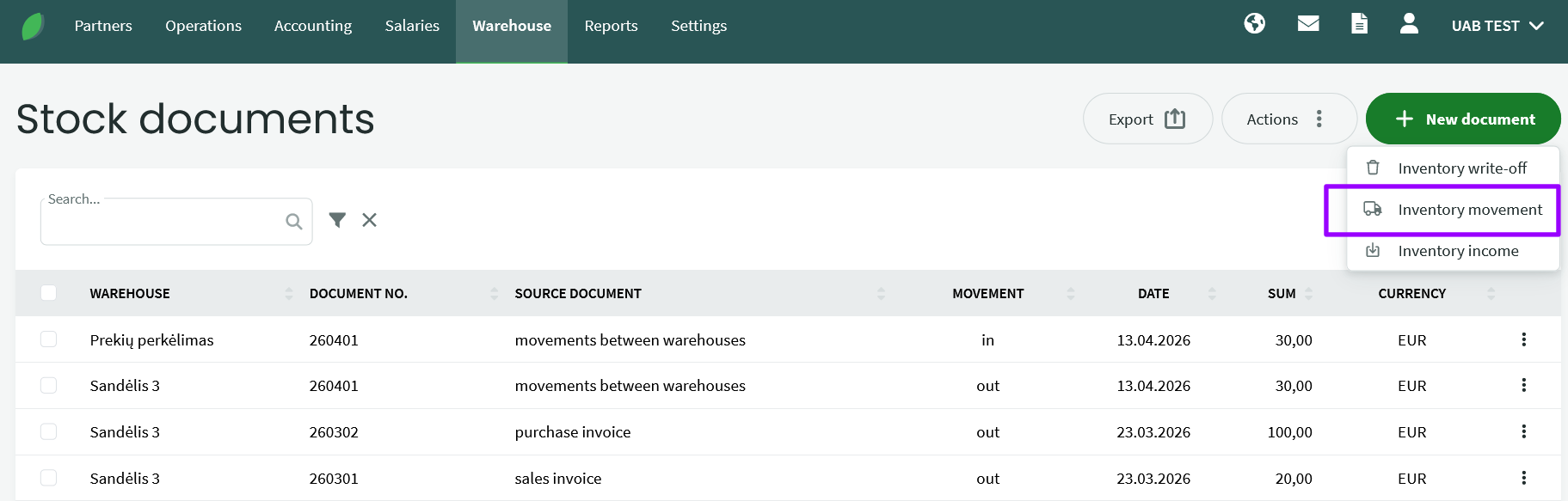
Warehouse -> Documents -> New document -> Inventory movement
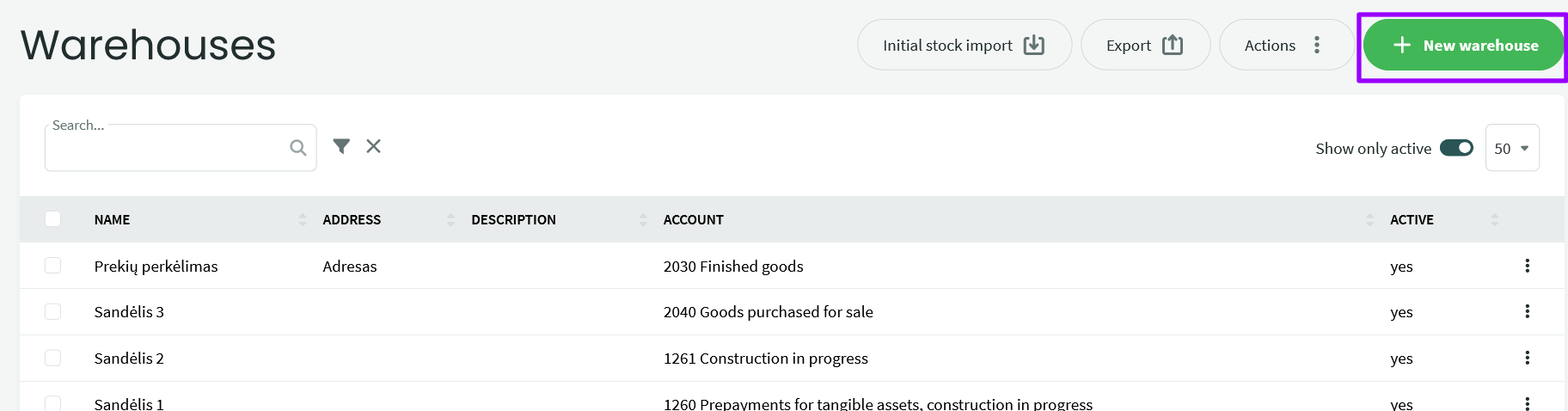
Note: You can create the desired warehouses by going to the “Warehouse” menu > “Warehouses” and selecting “New Warehouse.” Enter the name, account, and address (as needed), and save the warehouse.
Inventory movement between warehouses is used when:
- the company has a main warehouse where purchased goods are received and one or more additional warehouses at separate locations
- goods are delivered for resale under consignment terms
Go to Warehouse -> Documents -> New document -> Inventory movement
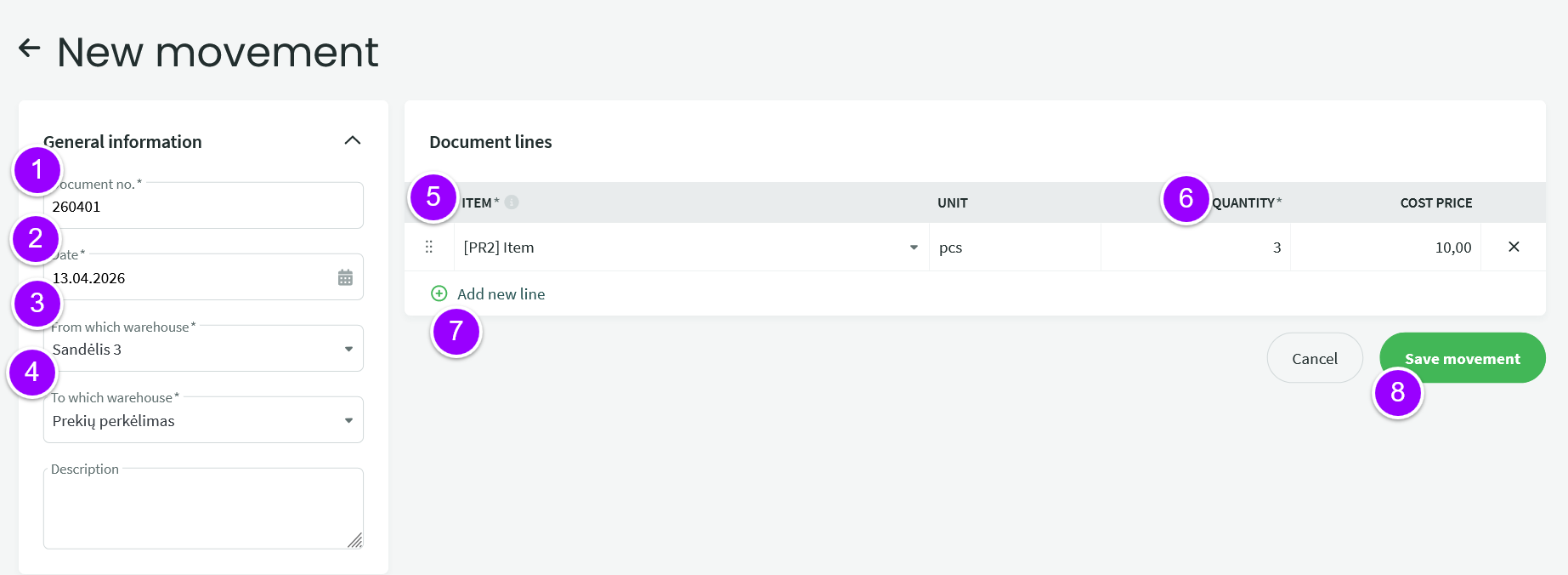
- Document number – automatically generated by the system
- Date – the date of the inventory transfer
- From which warehouse – the warehouse from which the goods are taken out
- To which warehouse – the warehouse into which the goods are received
- Item – only items with stock can be added
- Quantity– the quantity of goods to be moved
- Add new line – to add another item
- Save movement
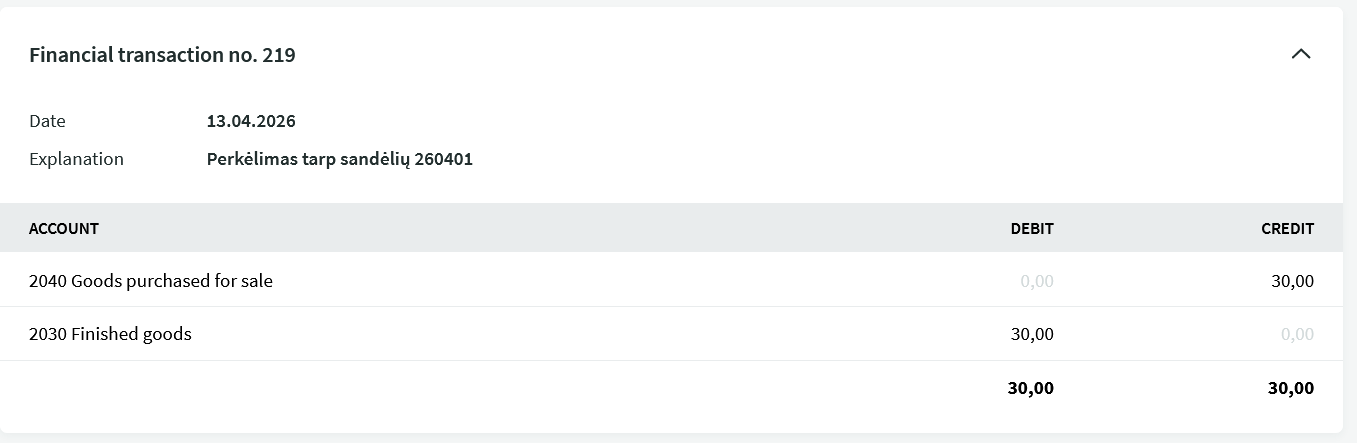
● When a warehouse transfer is saved, a financial transaction is generated showing the changes in the warehouse accounts in monetary terms.
If you have any additional questions, please write to us at support@simplbooks.lt