
Because OSS sales are not included in VAT and ISAF declarations, additional accounts must be included in the chart of accounts. Each country requires separate accounts for both sales revenue and sales VAT.
How to configure it properly?- For each country to which products are exported, create a separate income account (series 5xxx): Accounting -> Accounts -> New account. For example, Germany 5011, Sweden 5012, and so on.

2. Create a separate sales VAT account (series 4xxx) for each country: Accounting -> Accounts -> New Account. For example, VAT payable in Germany 44921, Sweden 44922 and so on.

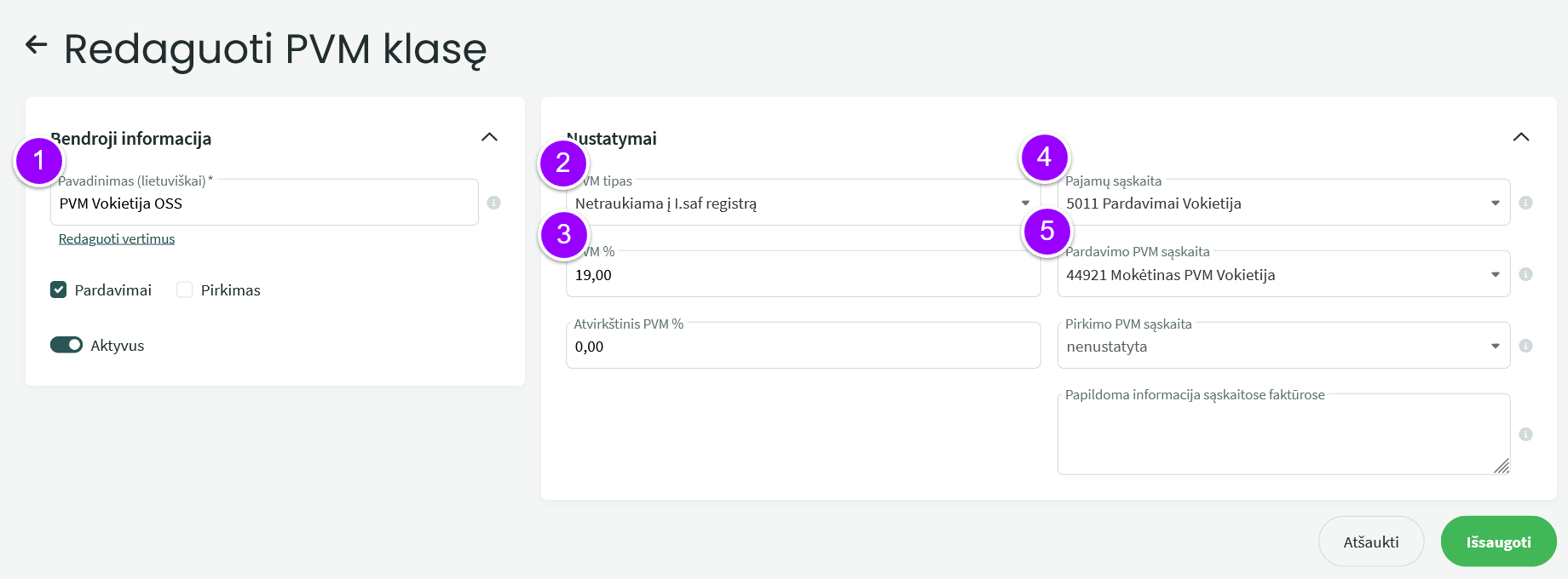
3. Create new VAT classes. Settings – Environment settings – VAT classes – Add a new VAT class (at the bottom of the page).
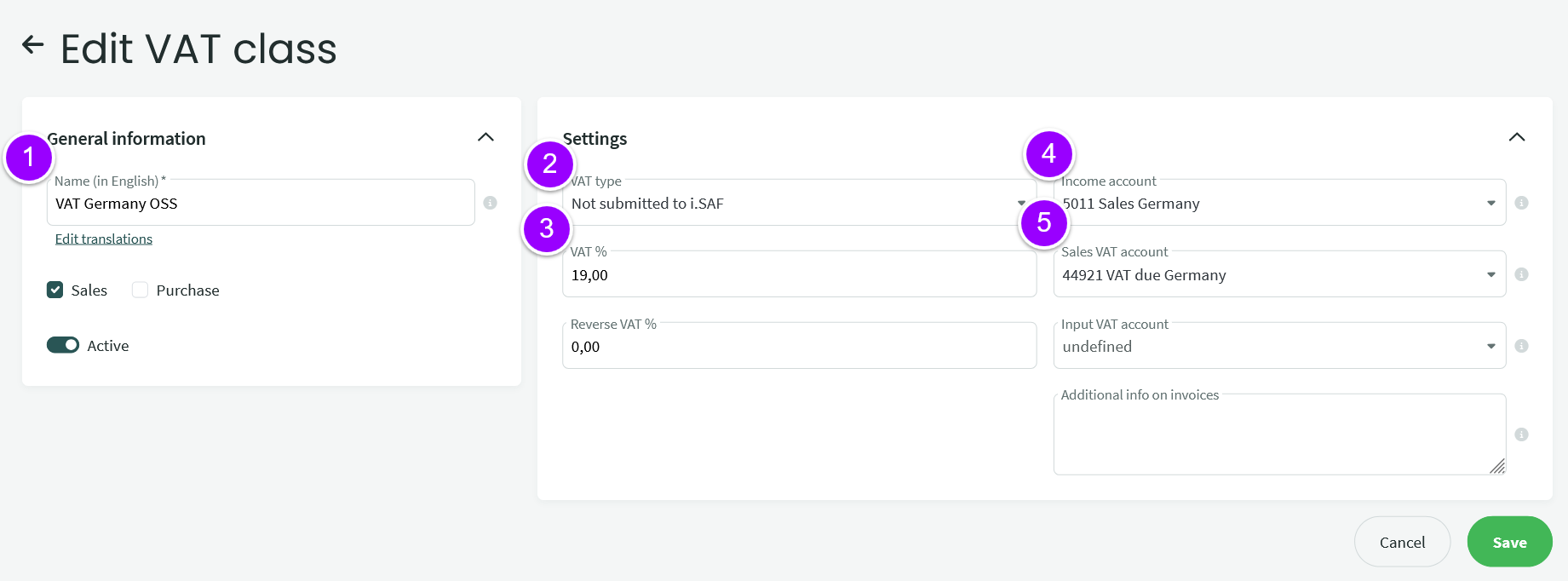
- Enter the name of the class
- Specify the VAT type “Not entered in the ISAF register”
- Enter the VAT rate
- Specify the income account you created for the country
- Specify the Sales VAT account that you have created for the country
- Save the sales tax class.
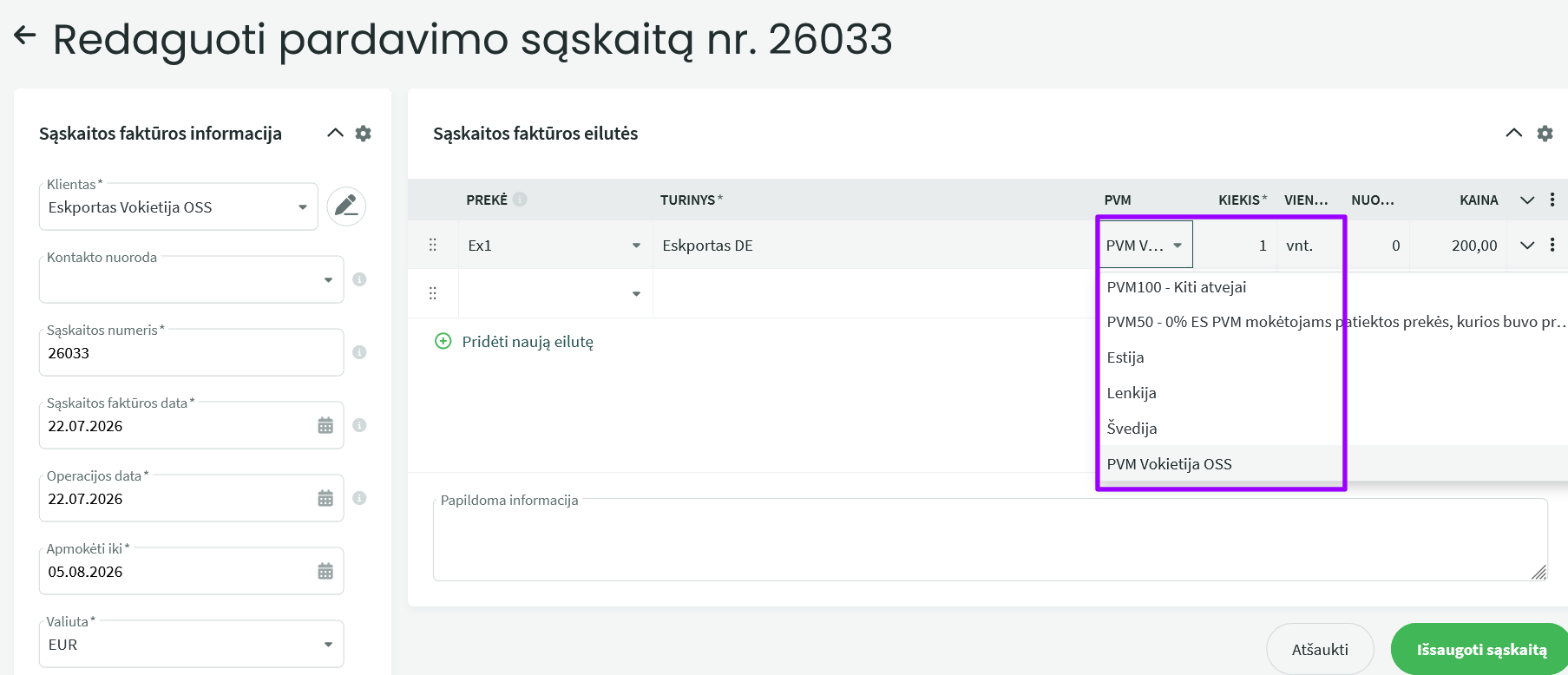
When you create a sales invoice, select the sales VAT type that you created.
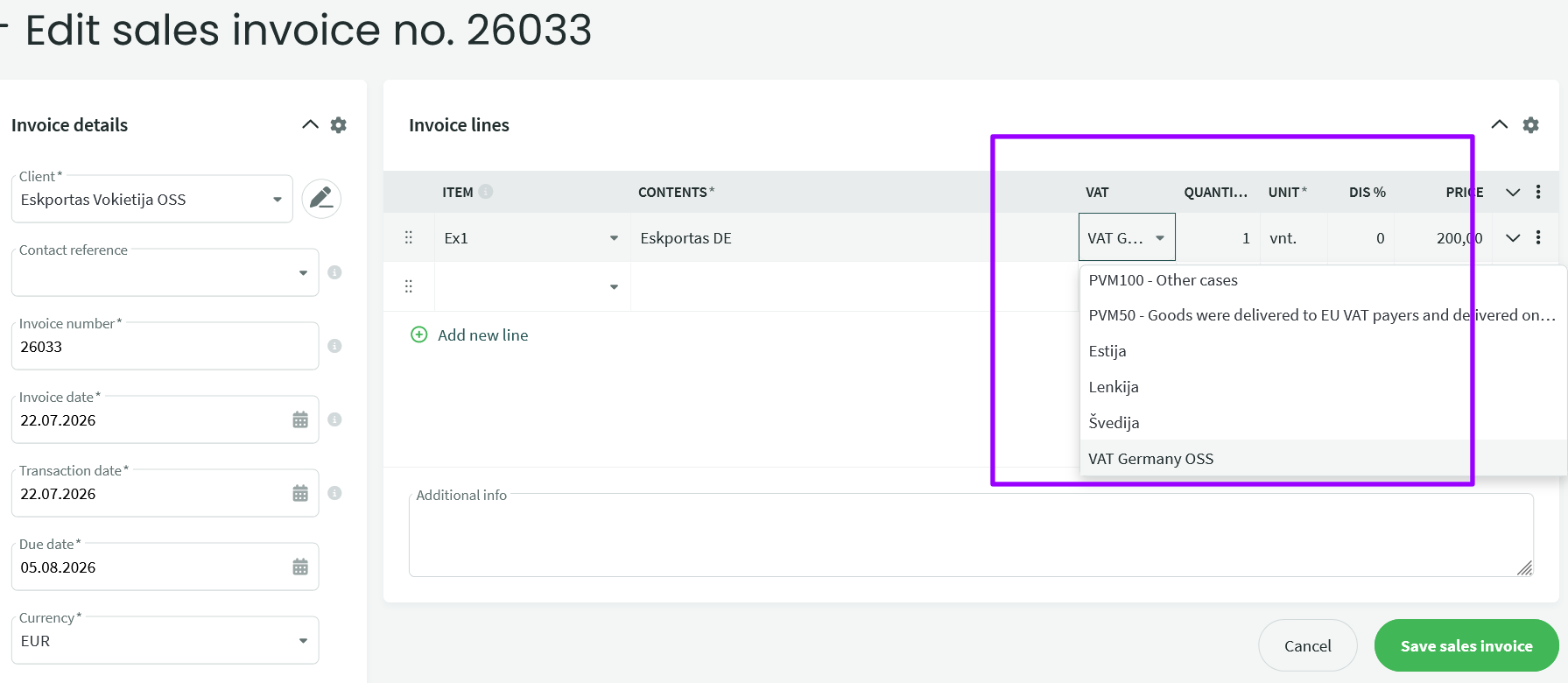
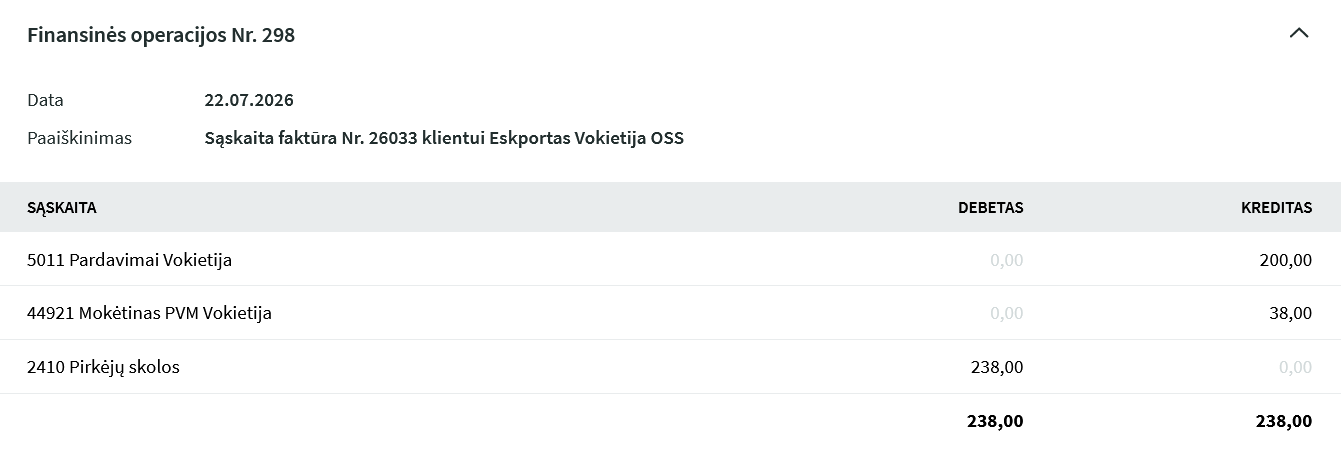
Saving such an account will automatically create a financial transaction.
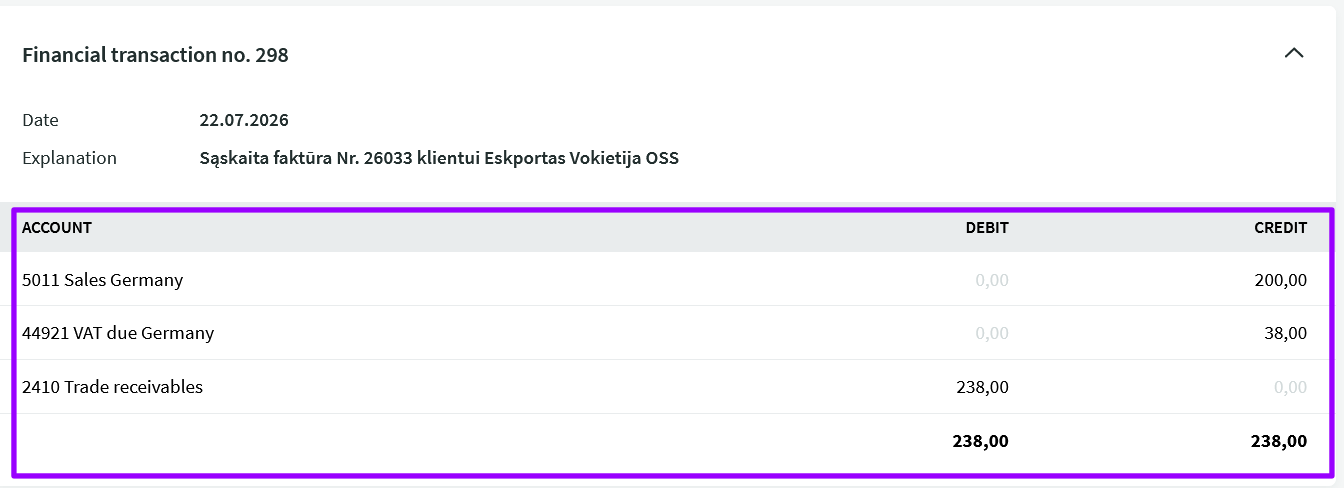
and the import was with a sales tax code PVM1: We recommend that you change the sales tax class on the sales invoice itself instead of editing the financial transaction. To do this, open the sales invoice, select “Edit sales invoice” and select the appropriate sales tax class (the sales tax class must be created in advance, as written above) and save the data. In this way, the system will create a valid financial transaction.
If you have any additional questions, please write to us support@simplbooks.lt.


Leave A Comment?