
Apskaita -> Sąskaitos
SimplBooks sistemoje yra iš anksto sukonfigūruotas sąskaitų planas, kurį prireikus galima keisti pagal savo įmonės ypatumus. Pridedant naujas sąskaitas, reikia stebėti ir jų susiejimą su reikalingomis ataskaitomis.
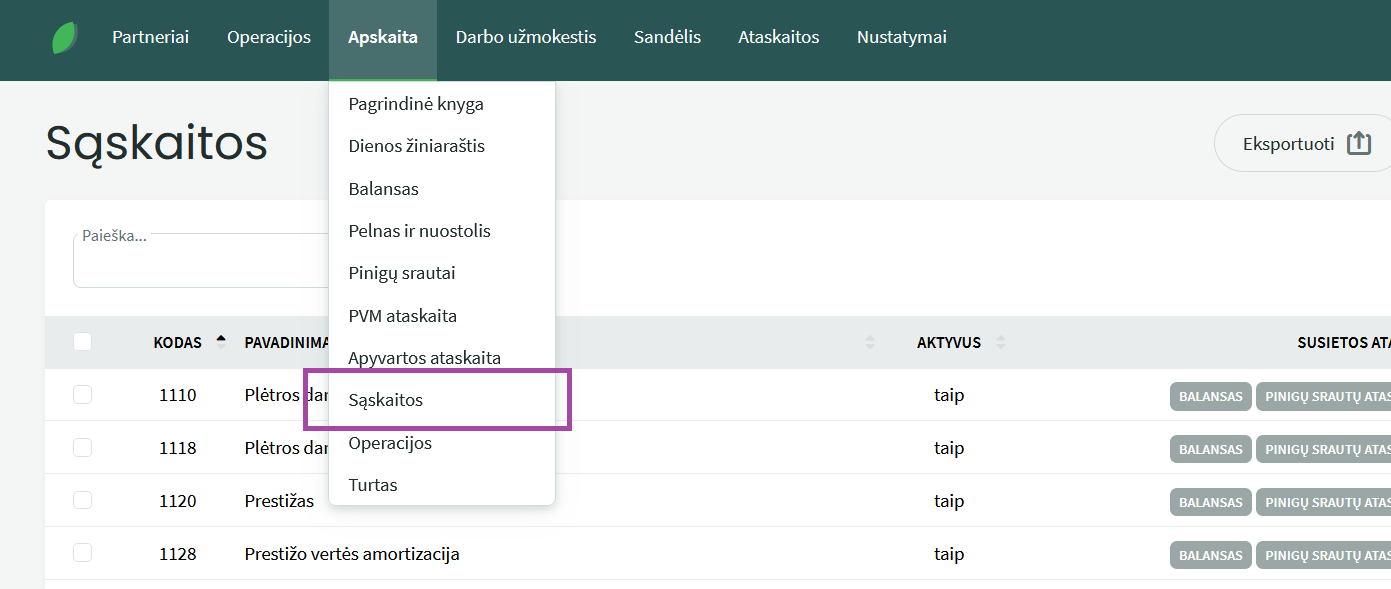 ● Sąskaitos suskirstytos:
1xxx – Balanso sąskaitos (turtas)
2xxx – Balanso sąskaitos (trumpalaikis turtas ir įsipareigojimai)
3xxx – Balanso sąskaitos (nuosavybė)
4xxx – Mokėtinos sumos (trumpalaikiai ir ilglalaikiai įsipareigojimai)
5xxx-6xxx Pelno (nuostolio) ataskaitos sąskaitos (pajamos ir išlaidos)
9xxx serijoje galima kurti nebalansines tarpines sąskaitas. Reikia atminti, kad nebalansinių sąskaitų likutis dienos pabaigoje visada turi būti 0, priešingu atveju balansas nebus subalansuotas.
● Sąskaitų planą galima eksportuoti spustelėjus mygtuką “Eksportuoti” (ekrano viršuje). Atsidariusiame rodinyje galima pasirinkti, kokiu formatu duomenys bus eksportuojami.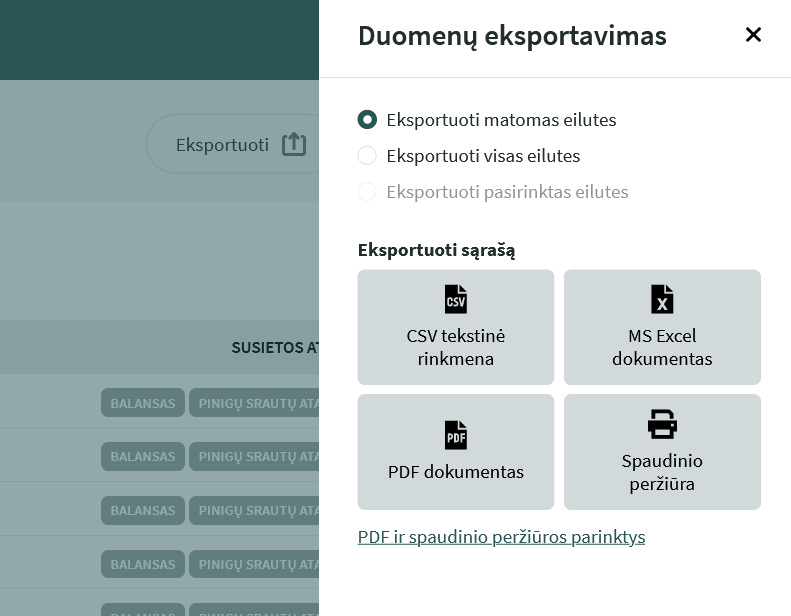
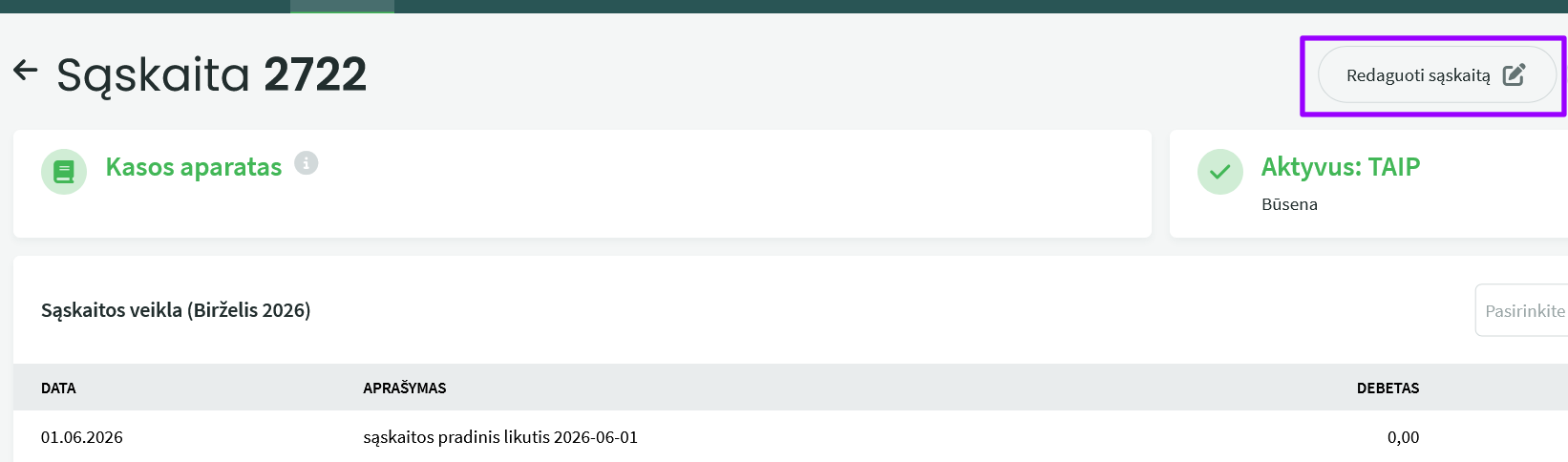
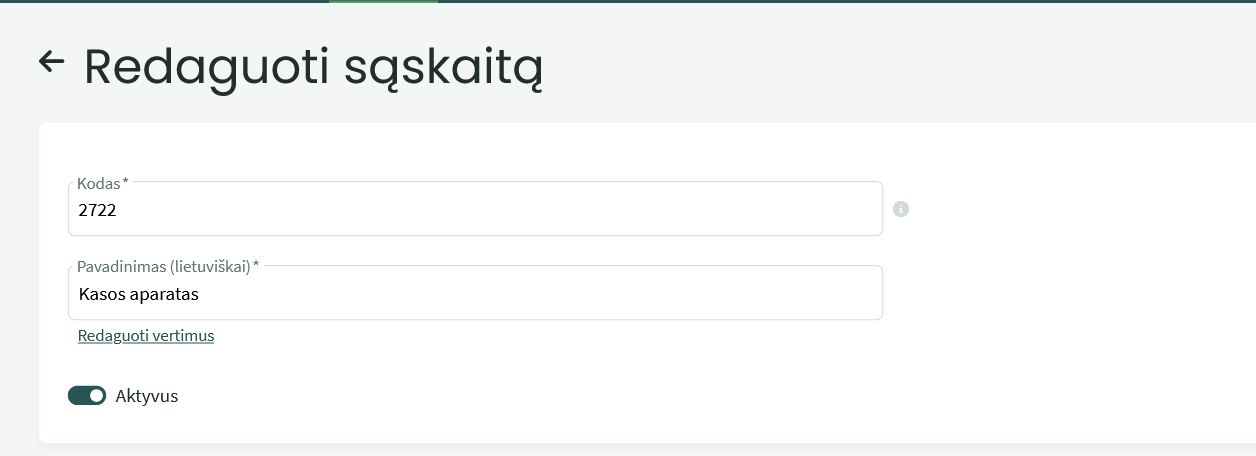
- Sąskaitos kodas – pirmasis skaičius rodo, kokio tipo sąskaita tai yra. Esamų sąskaitų kodą keisti rekomenduojama tik svarbiais atvejais.
- Sąskaitos pavadinimas aplinkos kalba. Jei naudojate programą ir kita kalba, keičiant sąskaitos pavadinimą, keiskite ir vertimus (spauskite Redaguoti vertimus).
- Norėdami padaryti sąskaitą neaktyvią, spustelėkite žalią mygtuką eilutėje “Aktyvi“.
Pavyzdys
Norite atvaizduoti automobilių eksplotacines sąnaudas naujoje sąskaitose. Sistemoje pagal numatytuosius nustatymus visos eksplotacinės išlaidos yra sąskaitoje 6301 (remonto ir eksploatacijos sąnaudos), todėl kuriame naują sąskaitą su numeriu artima esamai, pavyzdžiui 6305.
Pirmiausia reikia patikrinti, ar numeris 6305 jau nėra naudojamas.
Įveskite sąskaitos numerį paieškos laukelyje.
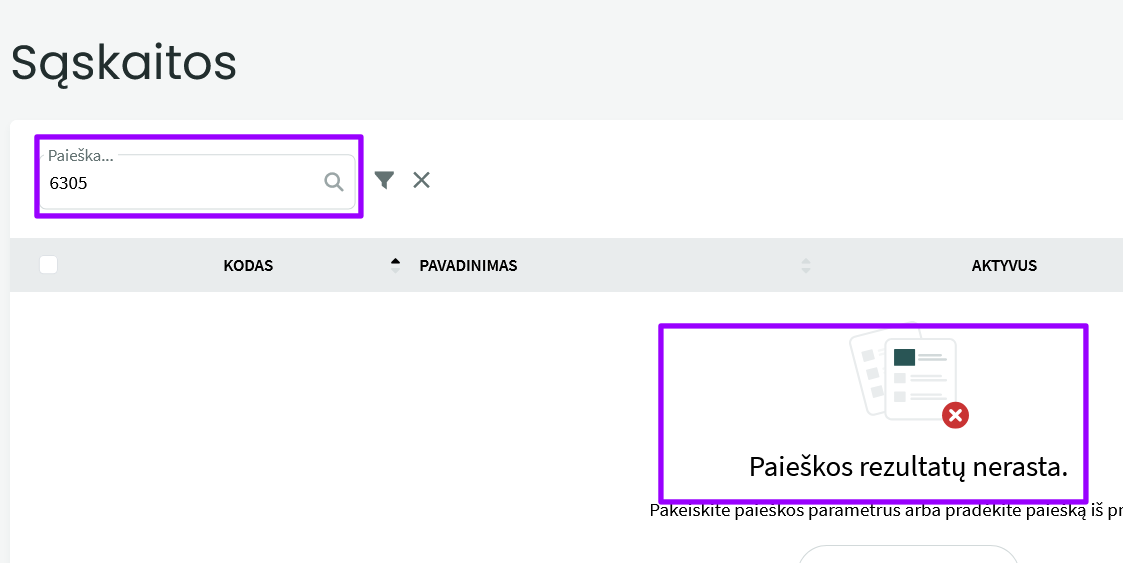
Matome, kad tokio numerio sąskaitos sistemoje dar nėra ir galime ją naudoti kuriant naują sąskaitą.
● Spustelėkite mygtuką “Nauja sąskaita“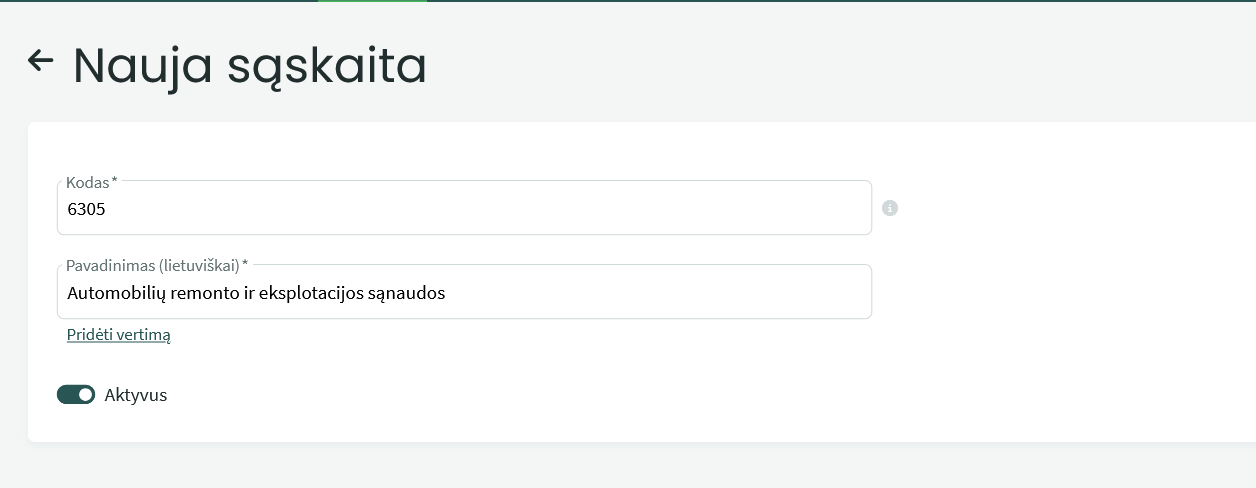
- Sąskaitos kodas – įrašykite kodą (6305)
- Įrašykite pavadinimą. Pridėkite sąskaitų pavadinimų vertimus, jei aplinka naudojama ne tik lietuvių kalba.
- “Aktyvi” turi būti įjungta pridedamai sąskaitai
Išsaugokite sąskaitą – pridėtiems pakeitimams patvirtinti.
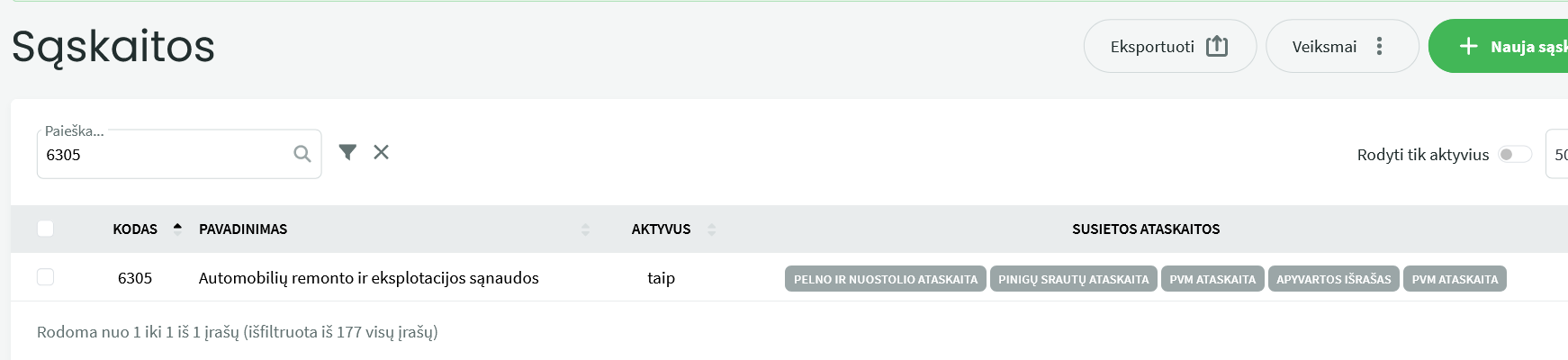
Pateikiamo pavyzdžio atveju nustatymai yra teisingi (sąskaitos numeris patenka į pelno (nuostolio) ataskaitoje eilutei nustatytą sąskaitų diapazoną).
Jei reikia atlikti pakeitimų susietų ataskaitų nustatymuose, eikite į ataskaitą (pvz. Pelno ataskaita) Veiksmai – Peržiūrėti ataskaitos parametrus.
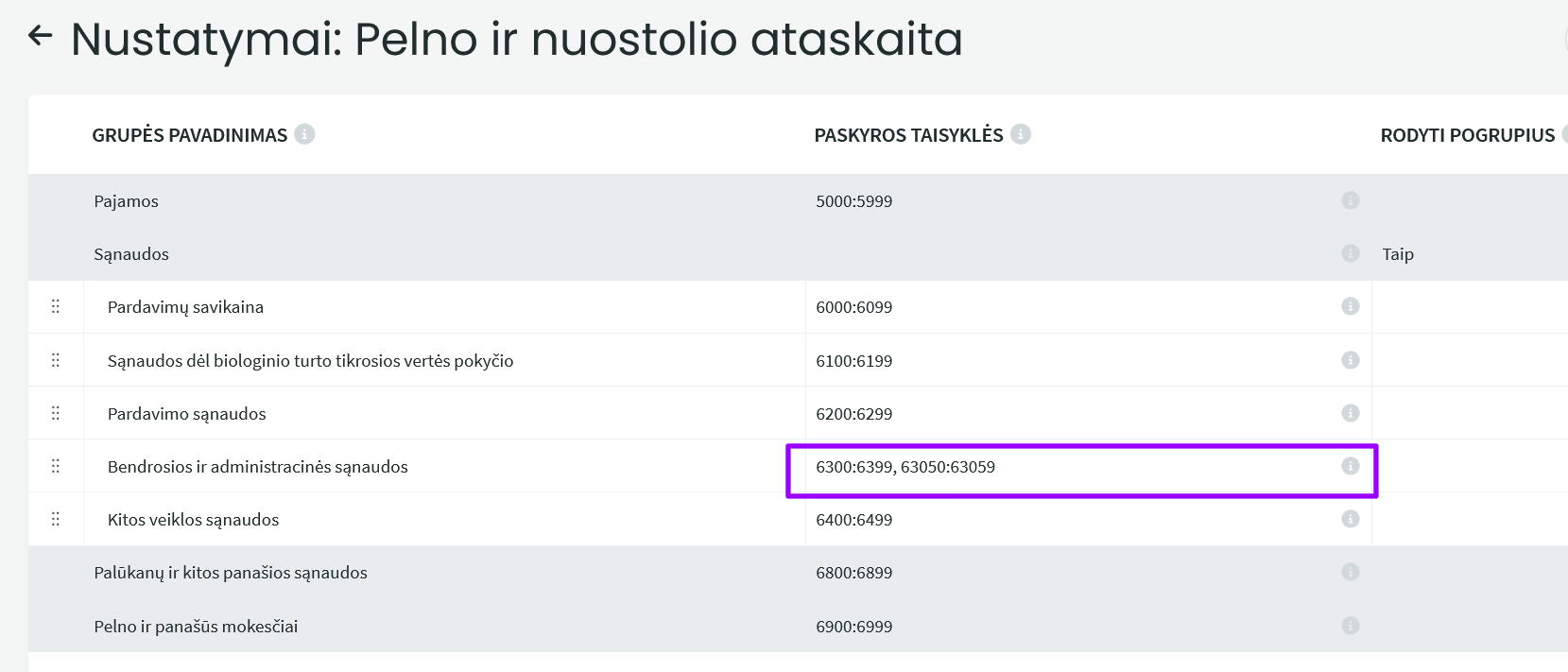
Jei trūksta 4 skaitmenų numeracijos ir norite daugiau detalizuoti sąskaitas, galima pridėti ir 5–8 skaitmenų sąskaitų numerius. Redaguojant ataskaitas, tokiu atveju būtinai reikia turėti omenyje, kad sąskaitas reikia pridėti atskirtai kableliu nuo numatytųjų sąskaitų. Jei, pavyzdžiui, kuriate numerius 63051, 63052, 63503 ir pan. juos galima atvaizduoti ataskaitų nustatymuose kaip diapazoną tarpusavyje. Pavyzdžiui: 6300:6399, 63050:63059 (žr. pav). Toks užrašymas reiškia, akd visos sąskaitos diapazone nuo 6300 iki 6399 ir 63050 iki 63059 pateks į pelno ataskaitos skirsnį Bendrosios ir administracinės sąnaudos.
Jei turite papildomų klausimų, rašykite mums support@simplbooks.lt