
To enter invoices in a foreign currency, the required currency must first be added or activated under the base currency.
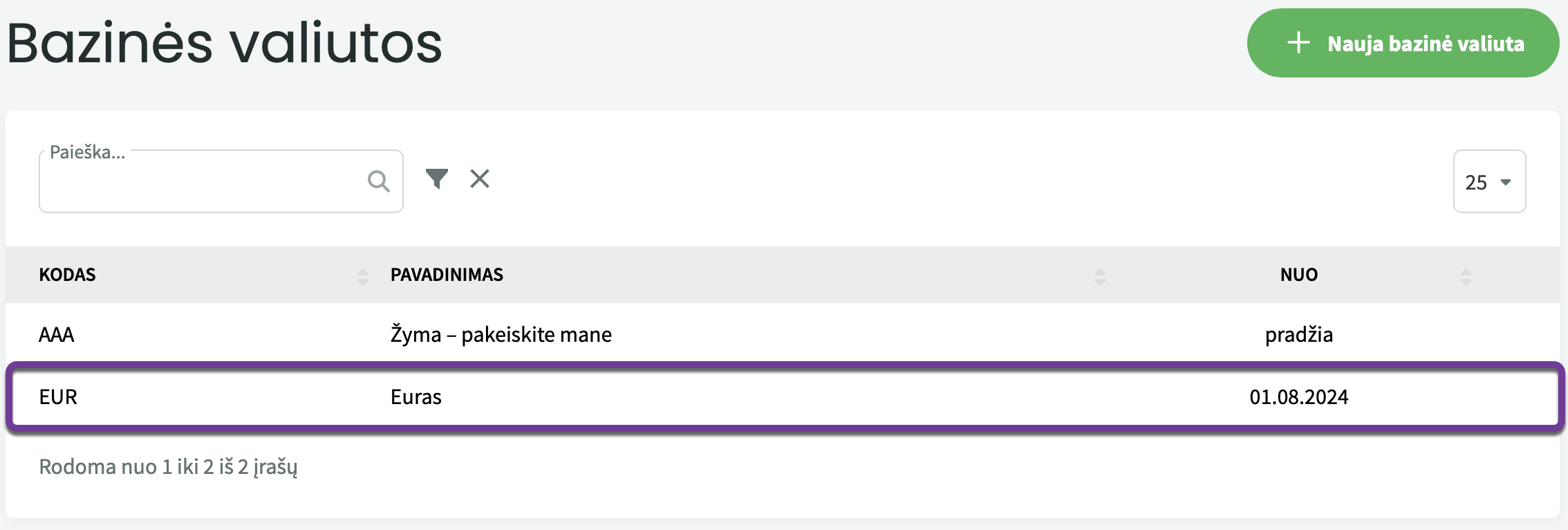
Important! Do not create a new base currency. Instead, modify the settings of the existing base currency (EUR). If you add a new base currency, your accounting data will no longer be displayed correctly, and corrective actions will be required.To add or activate a currency, click on the currently active base currency (EUR).
A list of all previously saved currencies will open.
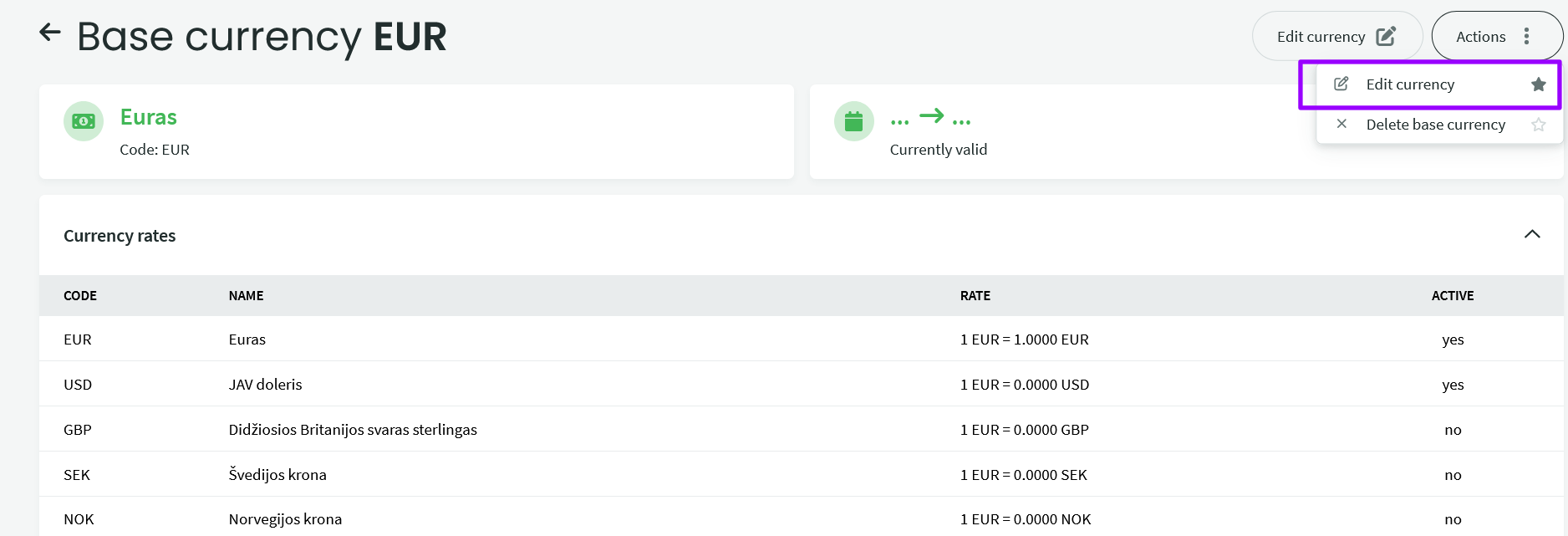
- If the currency is active, the Active column will display “Yes”.
- If the currency is inactive, the Active column will display “No”.
- To edit a currency, select Edit Currency from the Actions menu.
To activate an inactive currency, click Edit Currency, enable the toggle for the required currency, and save your changes by clicking Save Base Currency.

To add a new currency, click the green plus (+) icon next to Add new line at the bottom left of the list.
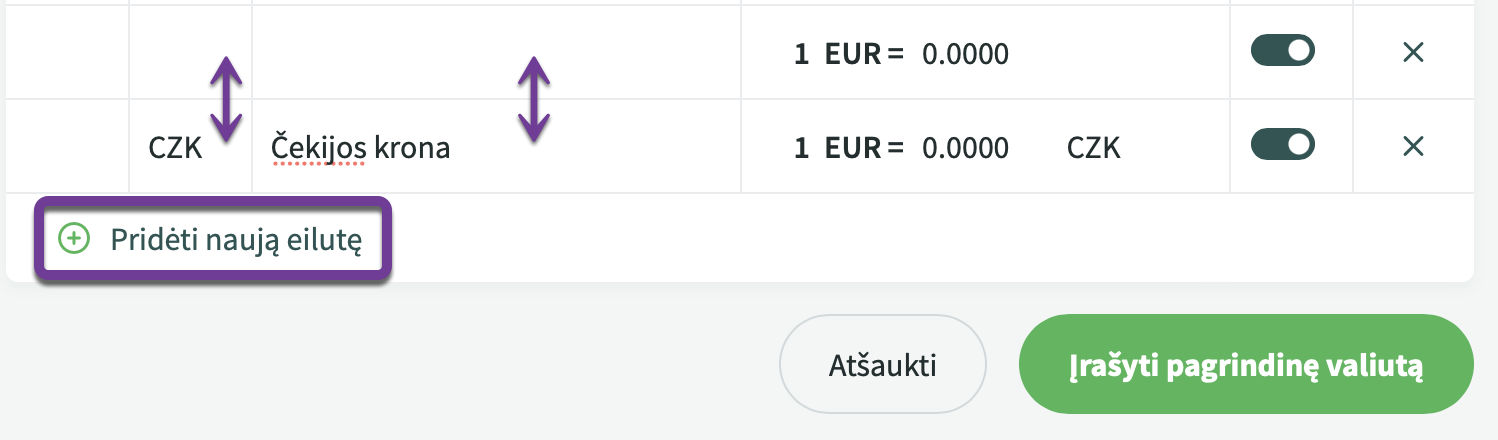
In the new row, enter the currency code (the international currency code used to retrieve exchange rates from the European Central Bank) and the currency name. Confirm your changes by clicking Save Base Currency.
● You do not need to enter exchange rates manually. When creating purchase and sales invoices, the current exchange rate is automatically retrieved from the European Central Bank database. ● Currency exchange (transferring funds from one bank account to another). Transfers between bank accounts in different currencies must be recorded in euros. For example, if you transfer funds from a USD account to a EUR account, the transaction must be recorded under Accounting → Transactions, and both the Debit and Credit amounts must be entered in EUR.If you have any questions, please contact us at support@simplbooks.lt.

Leave A Comment?