
How can you export a bank statement from your online banking system so that it can be imported into SimplBooks?
We recommend using an XML bank statement. This format contains detailed information about bank transactions and is therefore the most suitable format for importing bank transactions into accounting software.
Below you will find instructions on how to download an XML bank statement from the most commonly used banks in Lithuania.
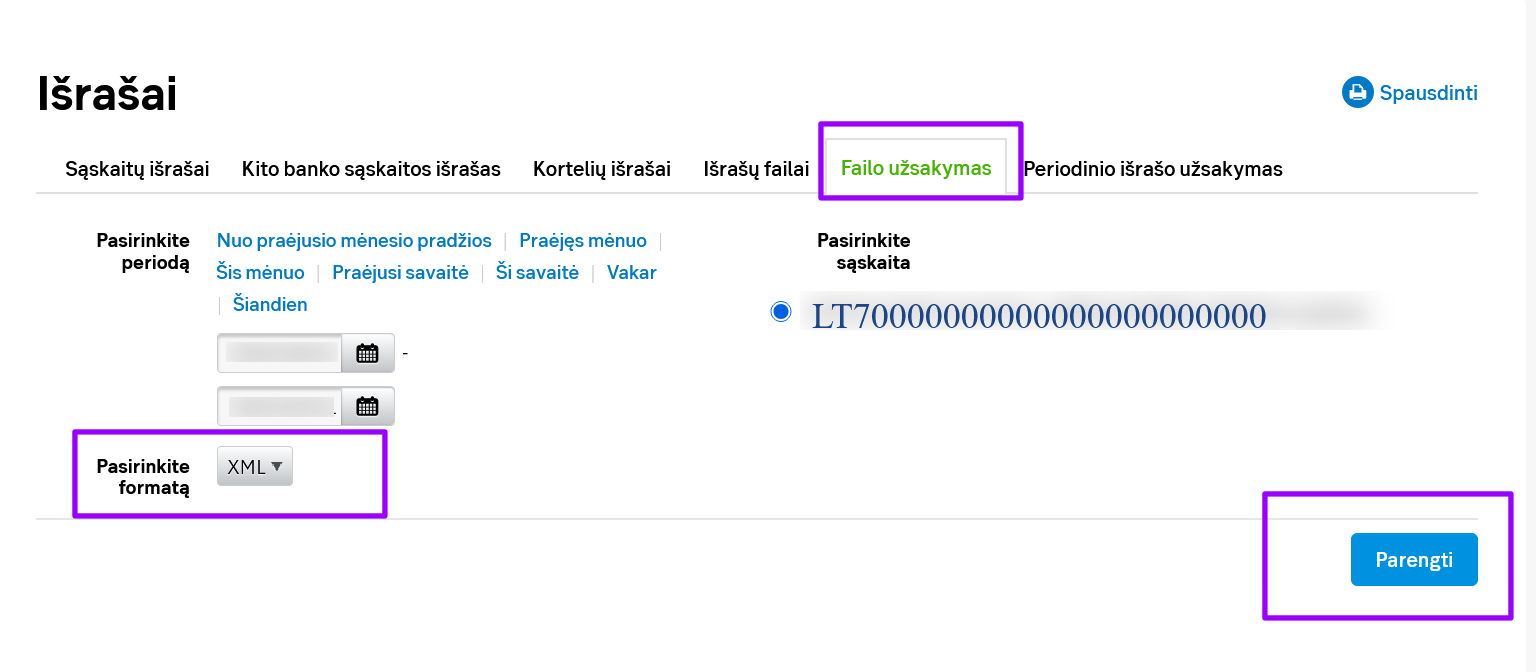
Log in to SEB Internet Bank for Business.
- From the top menu, select Accounts.
- Select Account statement.
- Open the File order section.
- Select:
- the bank account;
- the required period;
- XML as the file format.
- Click Prepare.
- Download the prepared XML file to your computer.
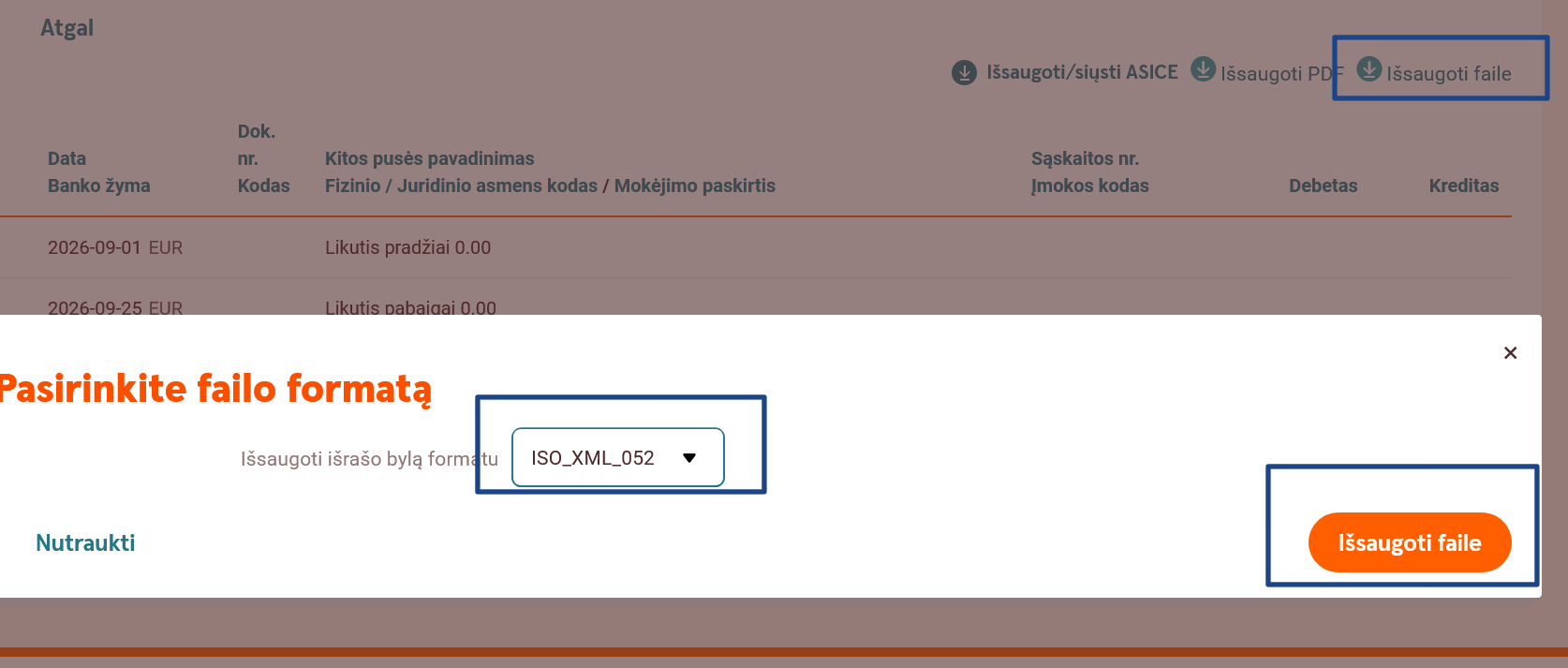
Log in to Swedbank Internet Bank for Business.
- Open the Account statement for the required bank account.
- Select the period for which you want to import transactions into SimplBooks.
- When exporting the statement, select the ISO 20022 XML format.
- Download the generated file to your computer.
Swedbank allows account statements to be saved in ACC, PDF, CSV and ISO 20022 XML formats. For importing into SimplBooks, select the XML format.
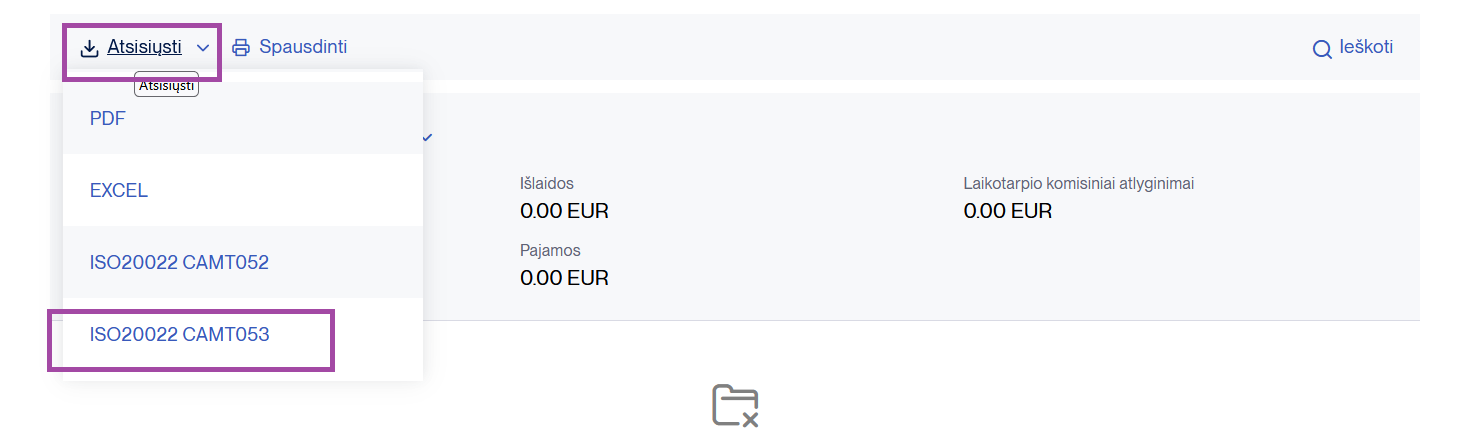
Log in to Artea Internet Bank for Business.
- Open the account statement section.
- Select the required bank account.
- Select the required statement period.
- Select the ISO 20022 XML format.
- Download the generated file to your computer.
If you are exporting a statement for a completed period, select ISO 20022 CAMT.053.
The CAMT.052 format is intended for a current-day statement or for a period where the last day of the selected period is the current day.
Log in to Luminor Internet Bank for Business.
- Open the Account statement for the required bank account.
- Select the required period.
- Select ISO 20022 XML as the statement export format.
- Save the generated file to your computer.
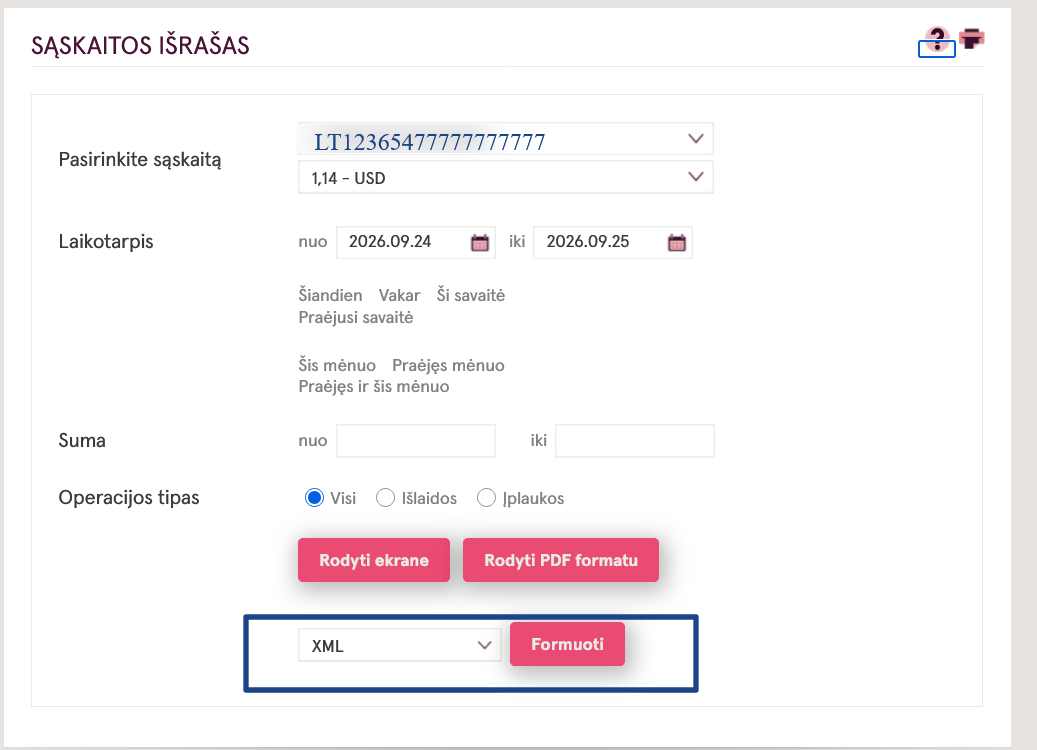
Log in to Paysera online banking.
- From the main menu on the left, select Account statement.
- If you have several accounts, select the account for which you want to download the statement.
- Select the required period.
- If necessary, select the currency and other statement filters.
- Click Show.
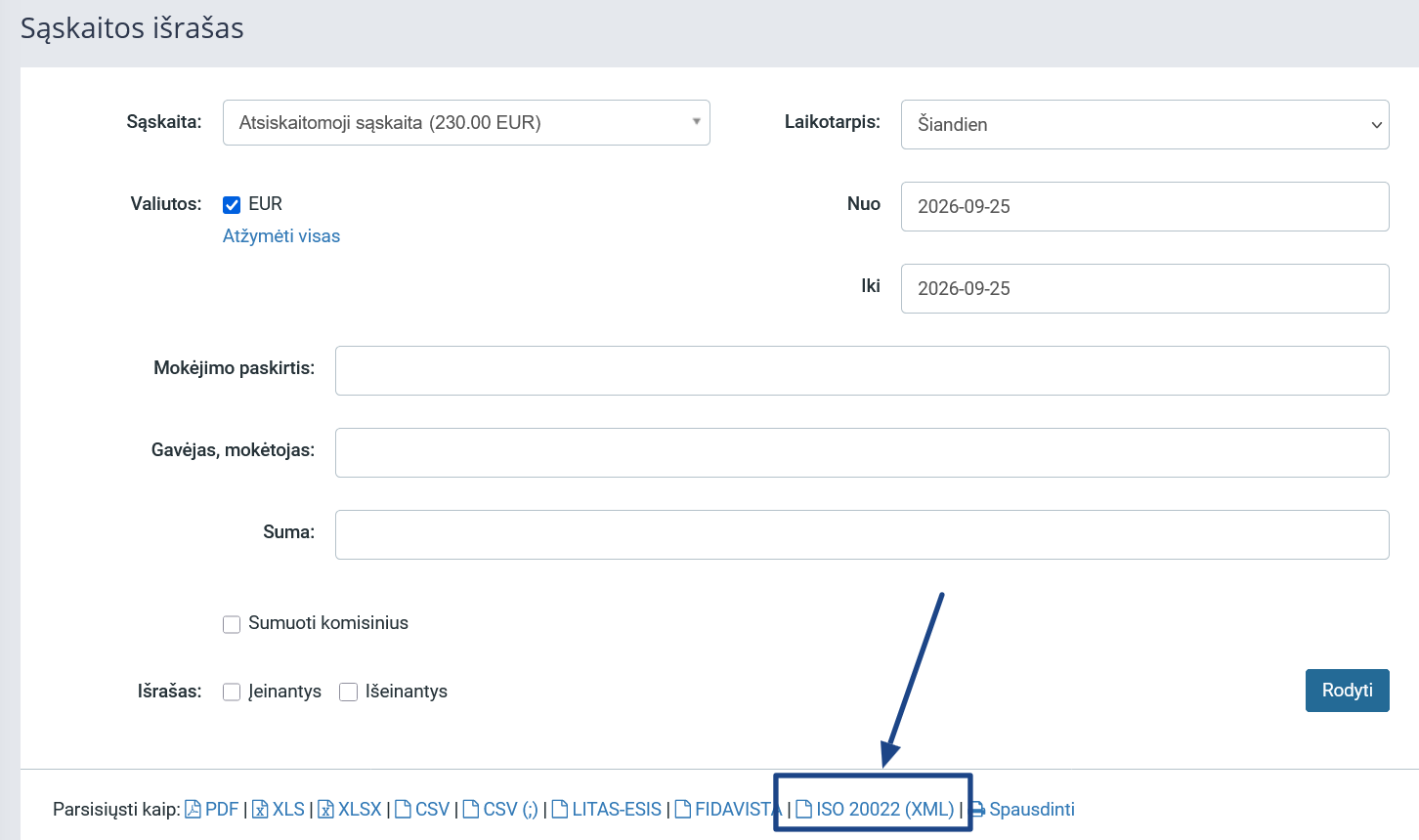
- Select the required statement file format and download the file.
To learn how to import a bank statement into SimplBooks, read here.
If you have any additional questions, please contact us at support@simplbooks.lt.

Leave A Comment?