
1. Open WAREHHOUSE in the menu and select Documents.
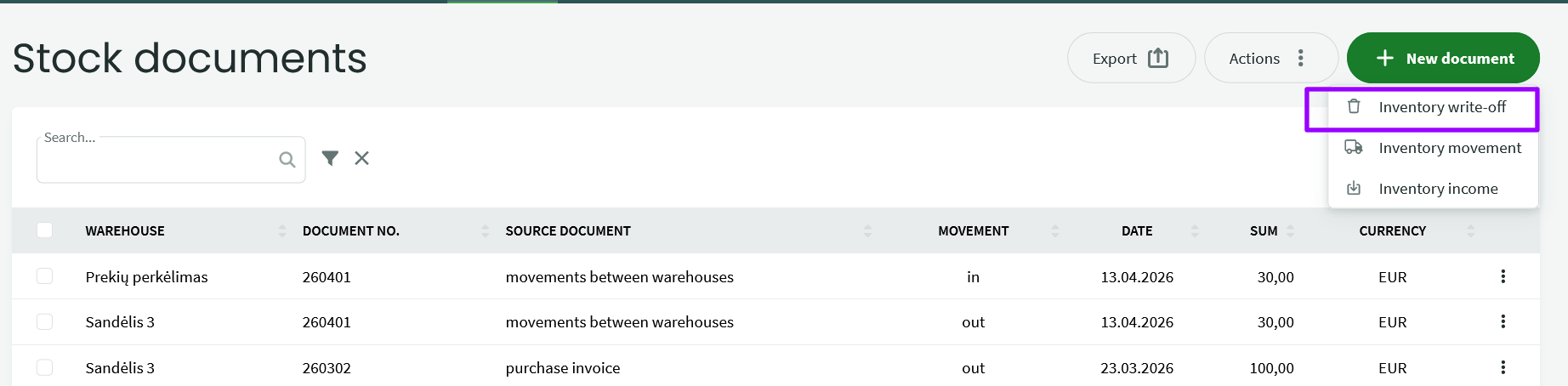
2. On the page that opens, click on the WRITE-OFF button.
3. The write-off form opens. The document number is completed automatically if you have previously saved a warehouse document counter.
Select the date from the calendar and the correct warehouse from the drop-down menu.
- Document no. – generated automatically by the system. You can configure the numbering formula under Settings -> Environment settings -> Warehouse settings.
- Date – today’s date by default.
- Warehouse – by default, the first warehouse in the list. You can change it by clicking on the field. More detailed information about warehouse settings can be found at the link in point 1.
- Description – an optional field where you can add additional information regarding the write-off.
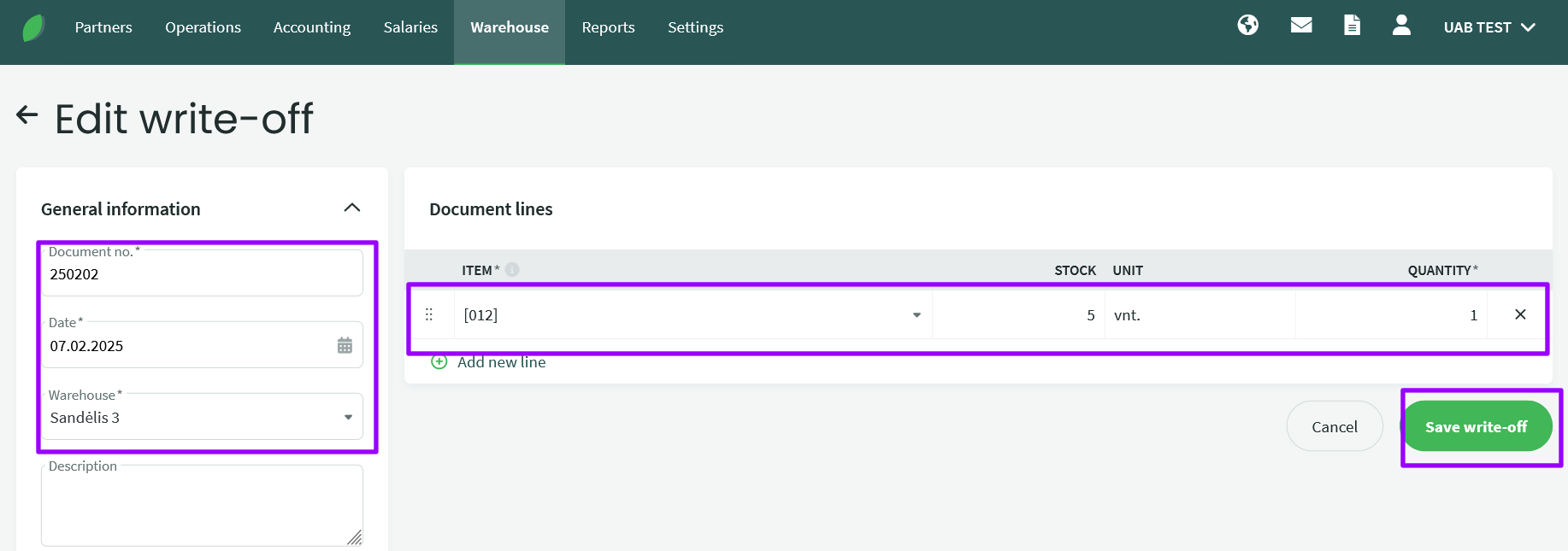
Begin by writing the name of the goods or the code on the document row and the program will offer all found matches. Make the selection by clicking on the correct row on the drop-down menu.
The system will check the quantity of the corresponding goods present in the corresponding warehouse. Warehouse goods cannot be sold, moved or written-off in negative quantities.
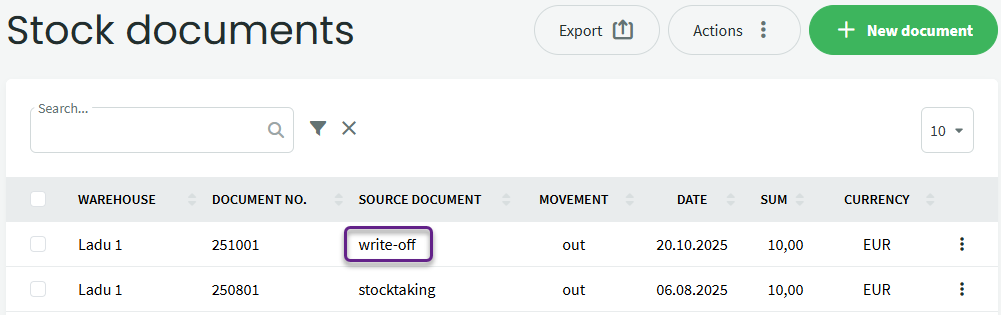
The write-off document can be found under Warehouse -> Documents. To view the contents of the document, click on the write-off line.
If you have any additional questions, please write to us at support@simplbooks.lt

Leave A Comment?