
These instructions include video and text material with examples of how to offset debts between several companies (e.g., a company has a debt to a supplier and at the same time has a sale to the supplier/buyer) and how to write off a debt due to bank charges, an invoice that has not been paid in full by a customer, etc.
If you want to offset a debt between a customer and a supplier:
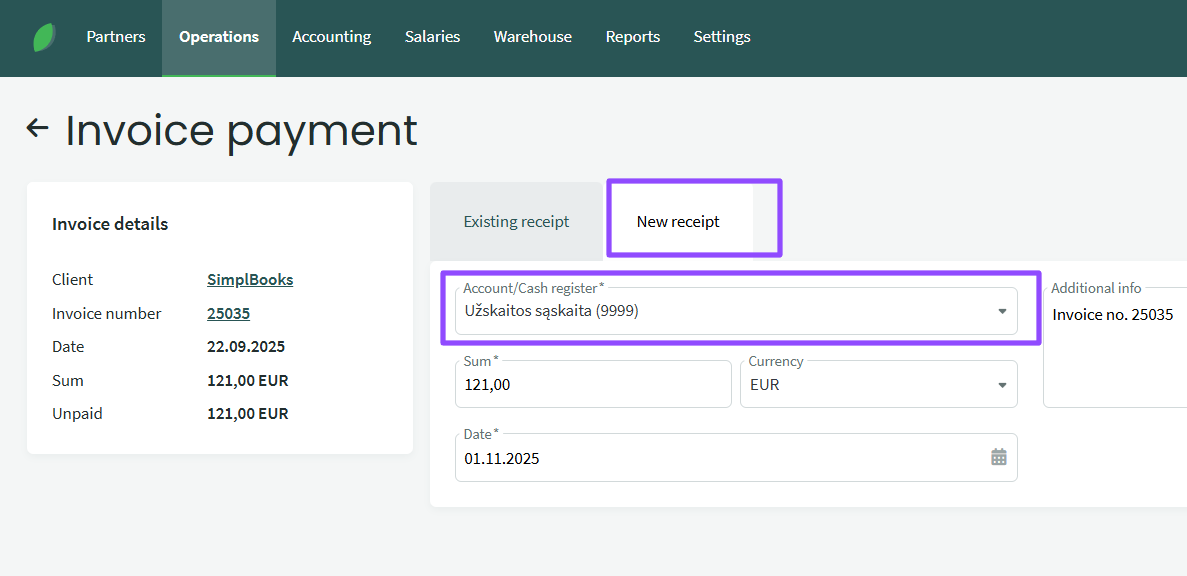
- Go to the desired invoice, click “Mark as paid,” select “New receipt” in the payment window that opens, and select the payment account as the Offset account (ex. 9999). Enter the amount and select the offset date. Click Save.
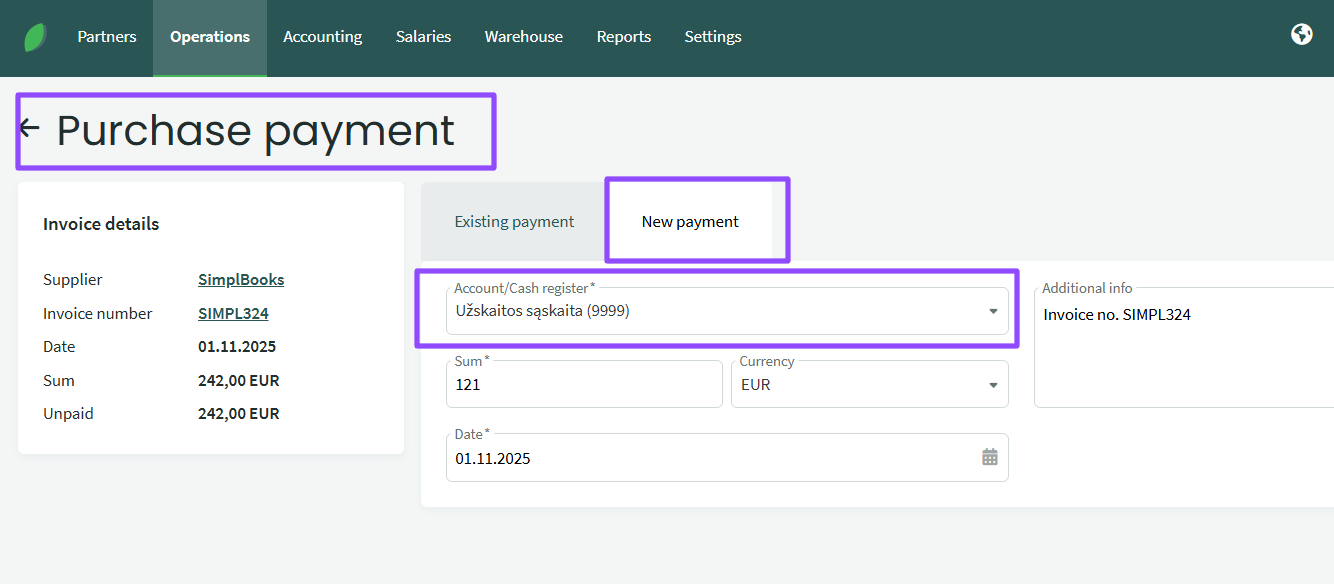
2. Go to the purchase invoice you want to offset and follow the same steps: select “Mark as paid,” click “New payment,” select “Offset account,” enter/adjust the amount and date, and save.
To make sure that the amounts have been offset, you can go to the customer or supplier and view the customer’s balance (debt). For more details, click Actions – View transaction statement – select the period, click Create, and check whether the amount has been recorded in the customer’s transaction balance.
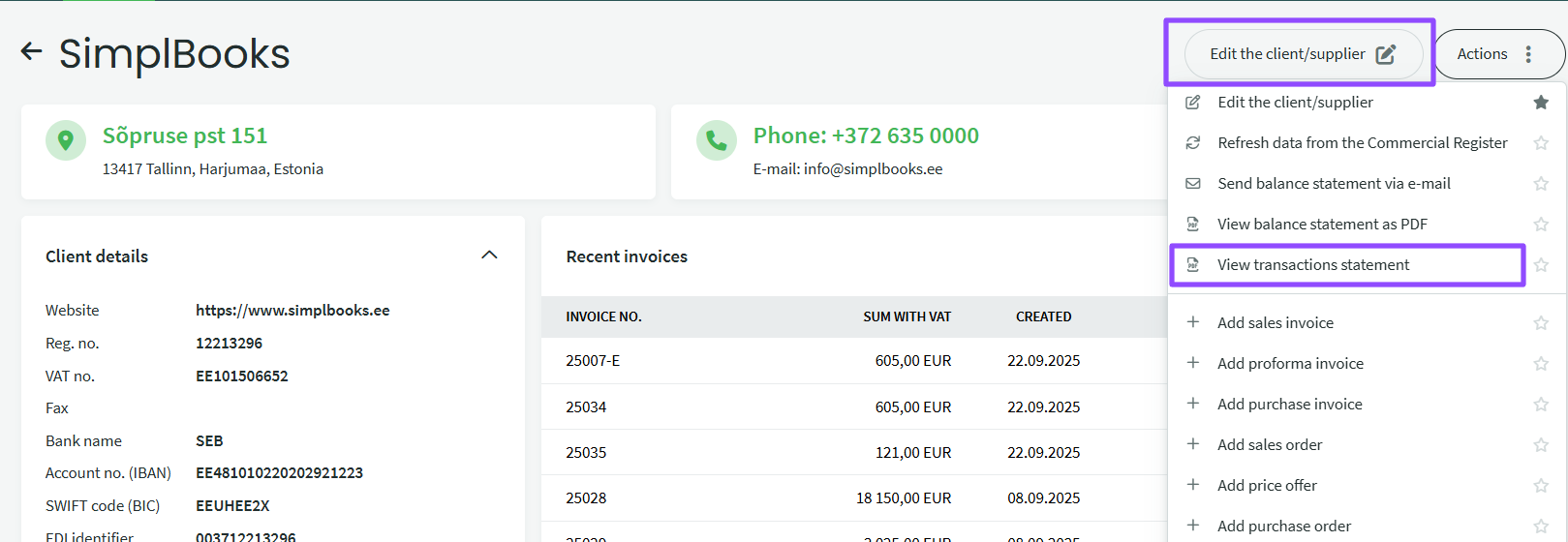
You can write off a customer/supplier debt via an interim offset account.
For example, the client did not pay the full amount of the invoice due to bank fees or other reasons. Go to the desired purchase or sales invoice, select Mark as paid and make same steps as above: New payment – select the Offset account, enter the amount, click Save, and the buyer’s debt will be written off.
To offset the Offset account (9999), go to Accounting – Transactions, click New transaction and enter the Offset account on one side of D or K, enter the amount, and on the other side of the debit or credit account, select, for example, bank fees, and click on the transaction entry.
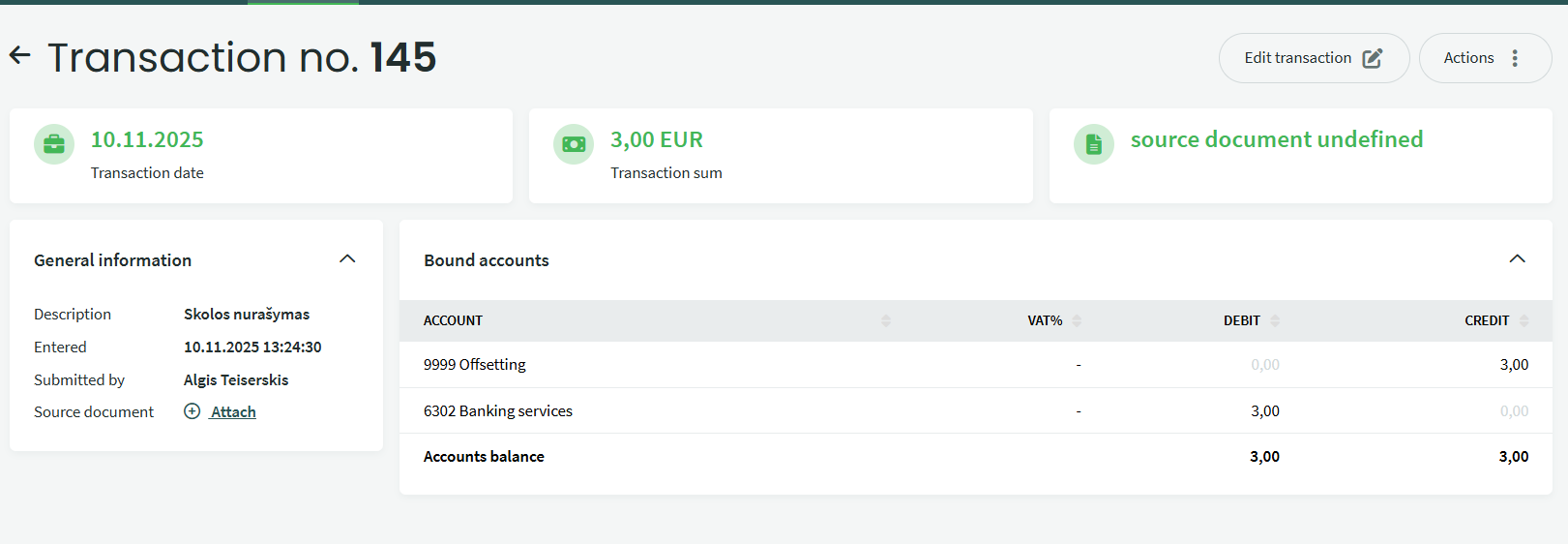
This will completely write off the debt and properly offset the amount in the offsetting account. You can check the Offseting account transactions in the menu Accounting – Main Ledger – select the account and view the transactions entered.
If you have any further questions, please contact us support@simplbooks.lt

Leave A Comment?