
In SimplBooks software, two types of items are used: service items and stock items. Using items is not mandatory if you only sell services and do not require raw materials. However, when providing services, it is useful to use items if you offer different types of services and want to assign them to separate revenue accounts.
New items/services can be added in two ways:
- By adding them one by one: Warehouse → Items → New item/service
- By importing the required data from a CSV file. You can read more about importing in the Item Import Guide.
When creating item codes, it is recommended to establish a consistent logic. For listing purposes, a numeric combination is the simplest choice. Consider how many items you may need and create your numbering accordingly. For example: if you expect fewer than 100 items, use codes from 01–99. If you need more, use 0001–9999. Leading zeros ensure that all item codes have the same length and are visually easy to track. When selecting items for invoices, you can search by both code and name, so you won’t need to memorize the codes.
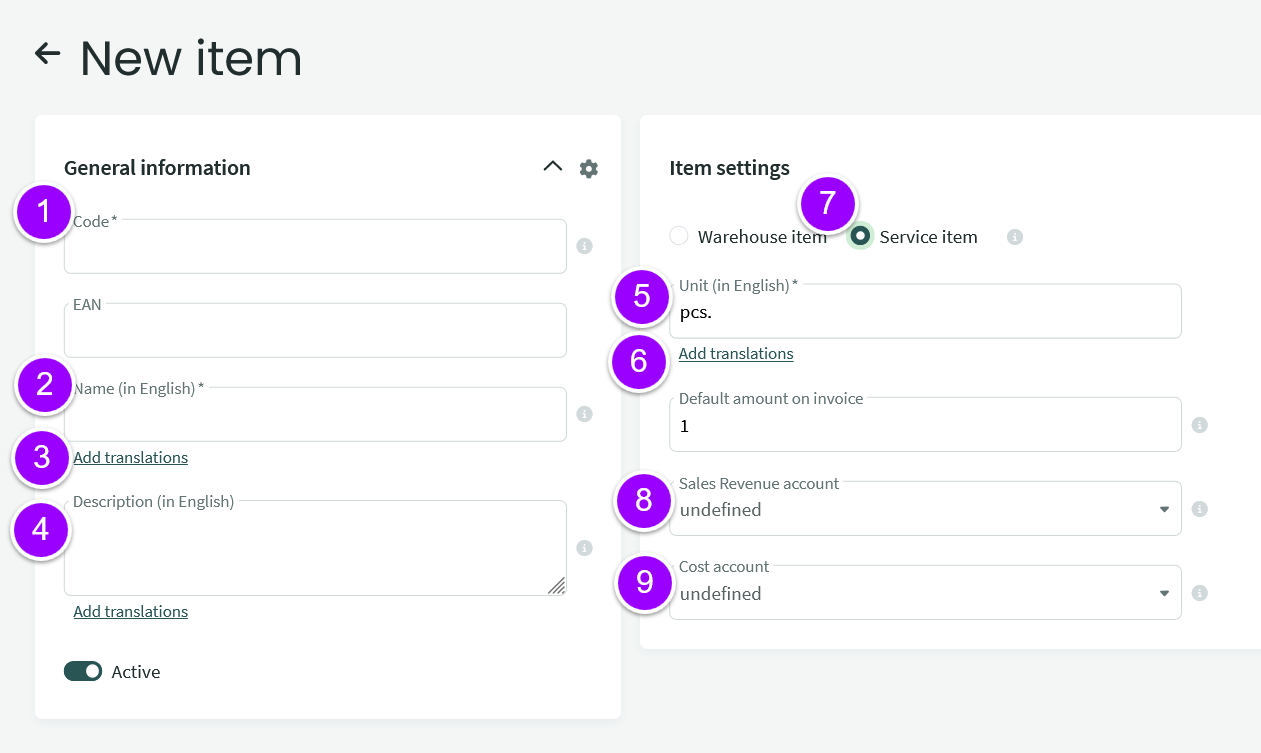
- Code – must always be unique. It must not contain spaces, slashes, underscores, commas, and it is not recommended to use quotation marks (they may cause issues during import/export). Maximum code length is 20 characters; longer codes will be truncated when sending e-invoices.
- Name – by default, the name is entered in the system language.
- Add translation – click this link to enter translations under the name (for active languages). Required if you issue invoices in multiple languages.
- Description – you can add additional information about the item (optional). If filled in, it will appear on the invoice. Consider adding translations if needed.
- Unit – required field (unit, roll, hour, etc.); add translations if necessary.
- Default quantity on invoice – if filled in, this quantity will be automatically added when selecting the service (can be changed).
- Service item – check this box if the item is a service.
- Sales revenue account – if you use the same item for both local and foreign customers, it is better to leave this empty. By default, revenue is taken from VAT type settings (or automatic posting settings if no taxable person is defined). If a revenue account is specified in the item card, it becomes the primary account and VAT-based revenue accounts are ignored.
- Expense account (for services) – specify the appropriate expense account.
Tip
If you want to issue invoices in English or Russian, you must add translations (name, description, unit), see point 3.
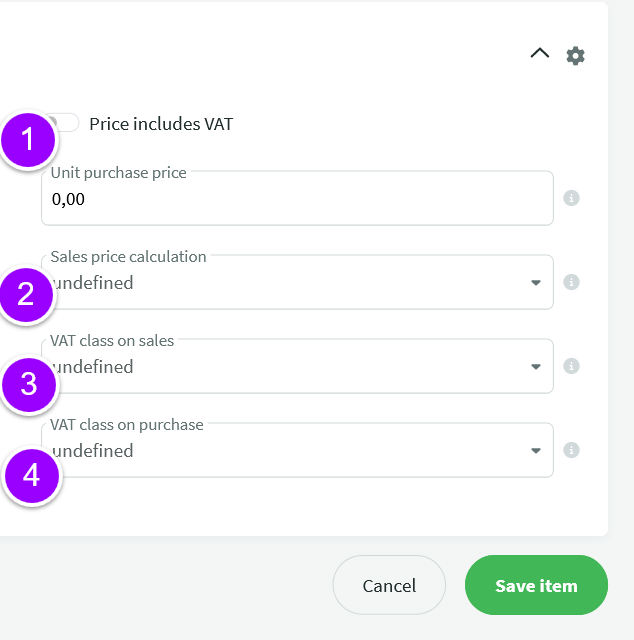
- Check this box if you prefer to see the price displayed with VAT included.
- Sales price calculation – always choose “fixed price” for services.
- Sales VAT class – specify if you want to set the sales price including VAT. If prices include VAT, it is recommended to also issue invoices with VAT included to avoid small rounding differences.
- Purchase VAT class – optional. Can be used if the item must always be linked to a specific VAT class.
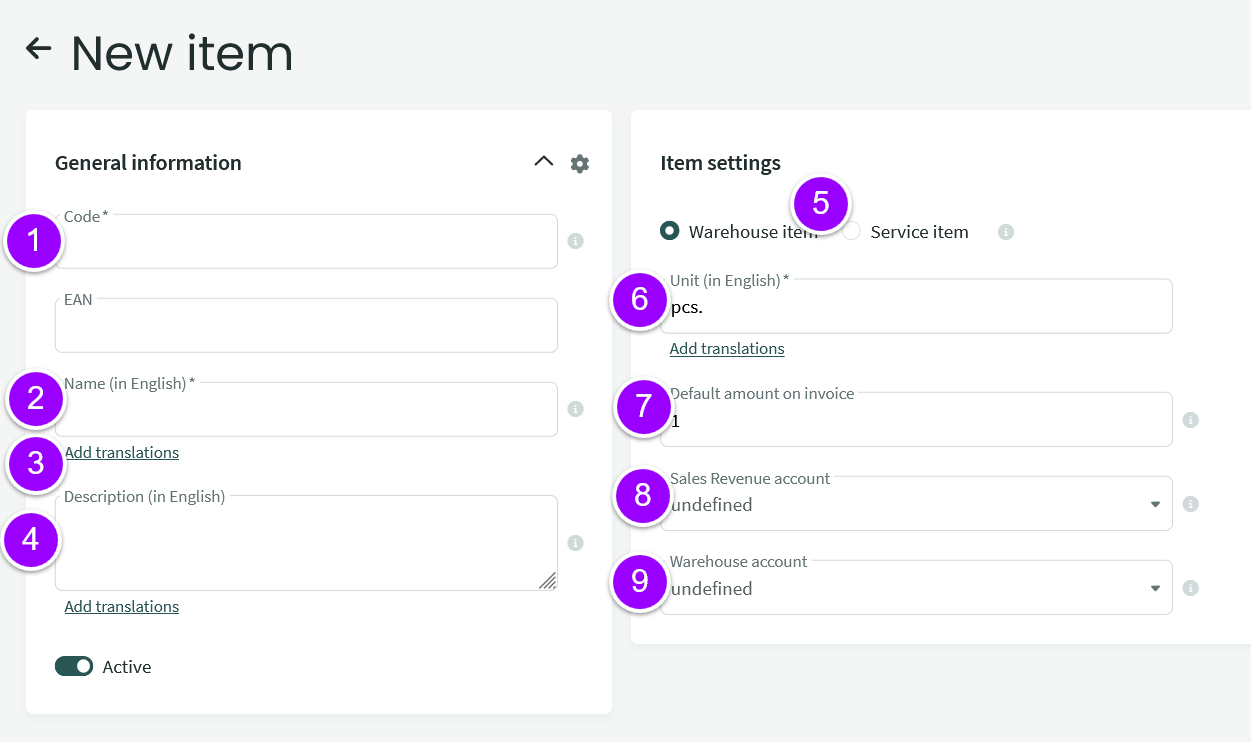
- Code – must always be unique. It must not contain spaces, slashes, underscores, commas, and quotation marks are not recommended. Maximum length is 20 characters; longer codes will be truncated in e-invoices. EAN – optional. Must not match the item code.
- Name – by default, the system language is used.
- Add translation – click to add translations under the name (active languages). Required for multilingual invoicing.
- Description – optional additional information. If filled in, it will appear on the invoice. Consider adding translations.
- Stock item – this checkbox must be enabled for stock items.
- Unit – required field (unit, roll, hour, etc.); add translations if needed.
- Default quantity on invoice – if filled in, it will be automatically added when selecting the item (can be changed).
- Sales revenue account – if used for both local and foreign clients, it is better to leave empty. By default, revenue is taken from VAT settings (or automatic postings if no taxable person is defined). If specified in the item card, it overrides VAT-based revenue accounts.
- Expense account – specify the appropriate expense account.
Tip:
If you want to issue invoices in English or Russian, you must add translations (name, description, unit), see point 4.
- Check this box if you prefer to see the price displayed with VAT included. Unit purchase price – if filled in, it is used when entering purchase orders/invoices. The cost price is determined based on the purchase invoice price.
- Sales price calculation – you can choose markup percentage or fixed price. When using percentage, enter numbers only (without the % symbol).
- Sales VAT class – specify if you want to set the sales price including VAT. If prices include VAT, it is recommended to also issue invoices with VAT included to avoid small rounding differences.
- Purchase VAT class – optional. Can be used if the item must always be linked to a specific VAT class.
Tip:
If a purchase price is set but sales price calculation is “not defined,” the purchase price will be used as the sales price. Always check that the sales price calculation method is selected.
If you have any questions, contact us at support@simplbooks.lt

Leave A Comment?