
In the Bank Accounts and Cash section, you can view existing account details, edit them, and add new ones. You can find them under Settings -> Accounts and Cash.
To add a new bank account or cash register, click the “New bank account/cash” button.
Note: It is recommended to use a different accounting account* for each new bank account or cash account.
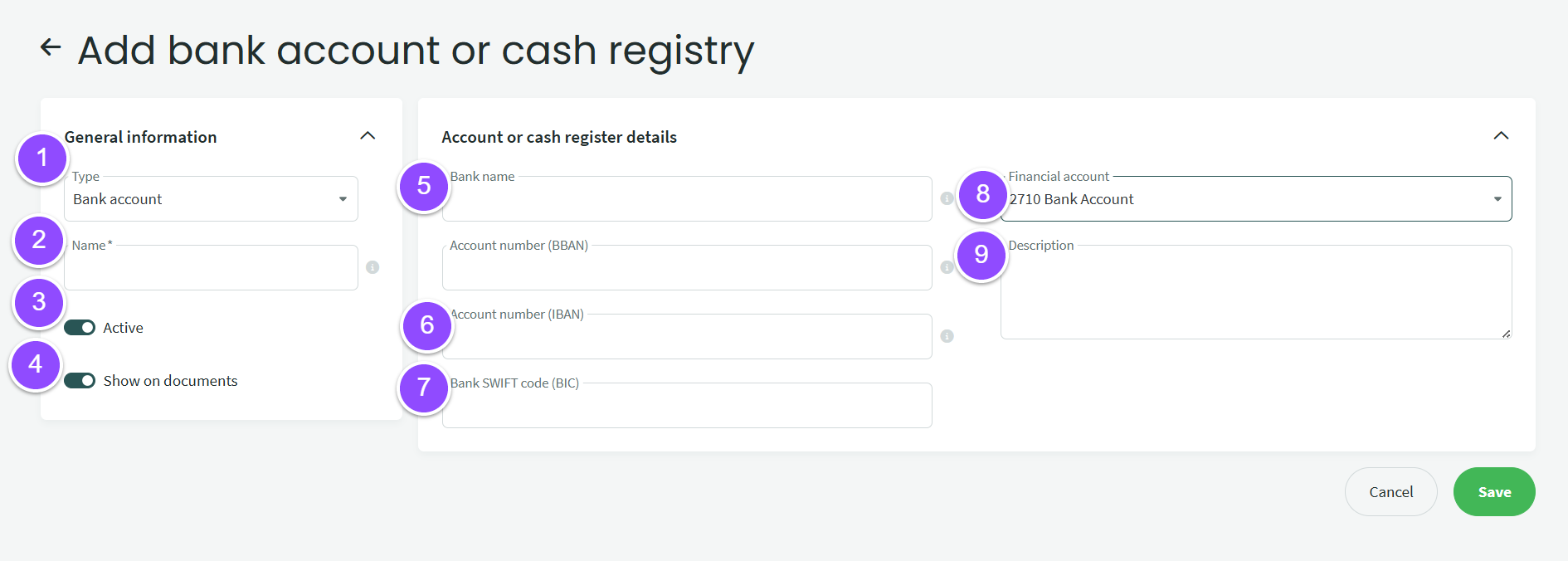
- Type – select account type
- Name – create a name. If there are multiple bank accounts within the same bank, come up with names to distinguish them (do not include the company name here)
- Active – if the account is active, it is visible and can be used for transactions. If inactive, it cannot be used for payments or receipts and will not be shown in company documents.
- Displayed in documents – option to define whether this account is shown in company documents or not.
- Bank name – the official name of the bank (You can enter bank IBAN – Once you enter the account number (field 6, fields 5 and 7 will be filled in automatically).
- Account number (IBAN) – the company’s account number in IBAN format without spaces
- SWIFT code (BIC) – enter the account’s SWIFT code.
- Financial account – must be unique for each bank account or cash register. Used for accounting entries. If a suitable account does not exist in the chart of accounts, it must be created* before adding a new bank account/cash register.
- Description – you may add additional notes about the account/cash register if needed.
*To create a new account for a bank/cash register, go to Accounting – Accounts – New account – Code e.g. 2711 – Name “Bank name” – click save account.
After saving the bank account or cash register details, the following actions are available in the Actions menu:
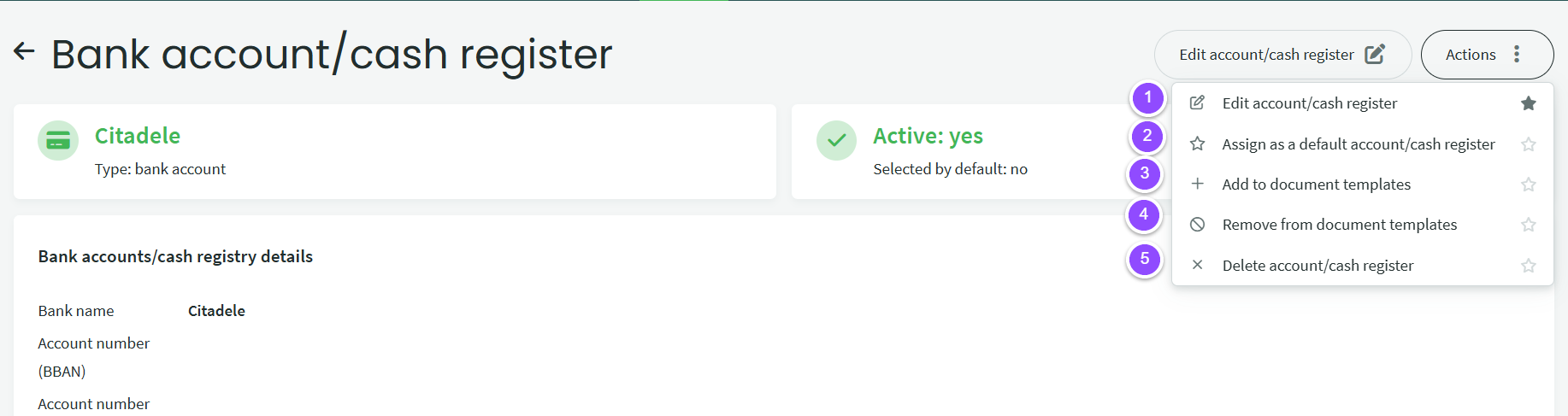
- Edit account/cash – add or modify account information
- Set as default account / cash – if you want this account to be the first suggested when entering receipts/payments, select this option
- Include in document templates – if you previously specified that this account should not be shown in documents, you can change that here
- Remove from document templates – if the account was added to document templates by mistake or is no longer the primary account, you can remove it
- Delete account/cash – you can delete the account if it was created by mistake. If there are transactions linked to the account, it cannot be deleted.
● Removing an account from document templates does not affect previously saved documents (sales invoices). To remove the account from a document, you need to open it, edit it, and save it again.
● If you no longer need to use a bank account, you can set it as inactive; this option is available in the account editing view.
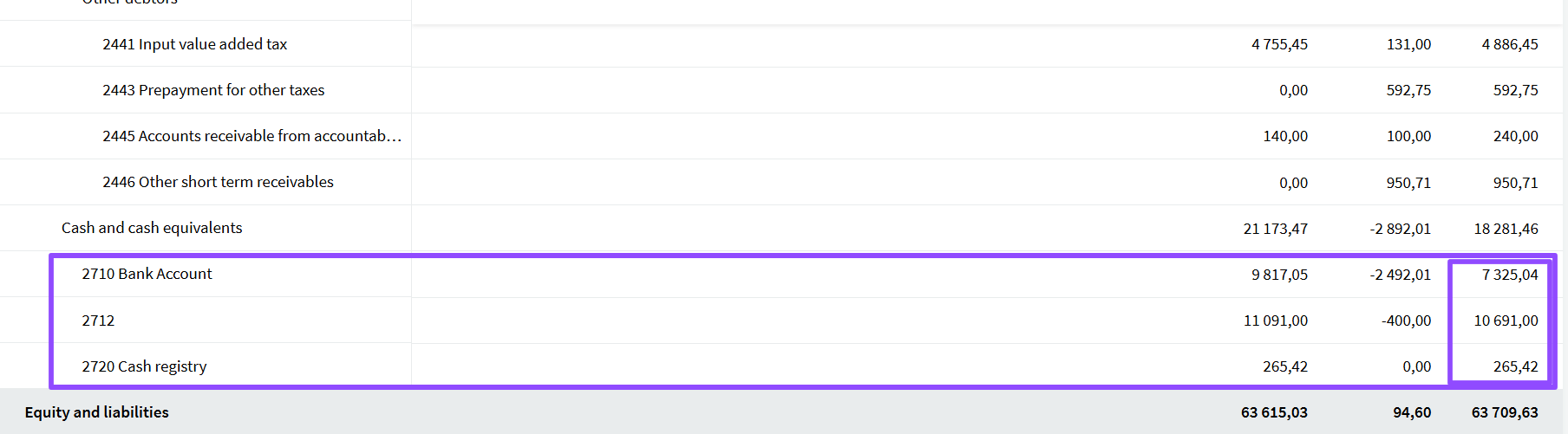
● Bank account balance: To view bank account balance(s), go to Accounting – Balance Sheet – check balances under “Cash and cash equivalents” in the last column. The date is always set to today. If you want to select a different date, choose the desired date in the “to” field at the top.
If you have any questions, please email us at support@simplbooks.lt

Leave A Comment?